Create Individual Plesk Login For Each Subscription
Create Individual Plesk Login For Each Subscription
Follow the steps to create Webmaster login for any subscription
Step 1. Visit the URL http://<your_domain>:8880 or https://<your_domain>:8443 (For SSL) and login.
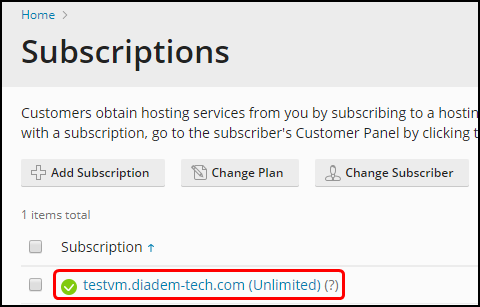
Step 2. Select the Subscription name.
Step 3. Now go to the Users tab from the menu and click on the button Create User Account

Step 4. Follow the below given steps to fill your Webmaster user.
- Type the Contact Name.
- Enter the email address either from your domain or from external any.
- You need to set the User role as WebMaster for gaining default administrator privilege for that subscription.
- Select the subscription from the dropdown which you want to give access to subscription.
- For Plesk preference section, input the username and password details which will be the control panel login information.
- Mark the user is active to enable access permission of the login for that user.
.png)
Step 5. A popup will show as the user is created successfully.
.png)
Following are the steps to login to control panel as webmaster
Step 1. Visit the URL http://<your_domain>:8880 or https://<your_domain>:8443 (For SSL) and type the webmaster's username and password to login.
.png)
Step 2. After login successful, you can view the user is logged as, from the top right corner as given.
.png)
Related Articles
Create Individual Plesk Login For Each Subscription
Create Individual Plesk Login For Each Subscription Follow the steps to create Webmaster login for any subscription Step 1. Visit the URL http://<your_domain>:8880 or https://<your_domain>:8443 (For SSL) and login. Step 2. Select the Subscription ...How To Create Plesk Login For Each Subscription
Create Individual Plesk Login For Each Subscription Step 1: Follow the steps to create Webmaster login for any subscription 1: Visit the URL http://<your_domain>:8880 or https://<your_domain>:8443 (For SSL) and login as a customer. 2. Select the ...Plesk database missing in subscription
Check and Move database between different subscription Issue: Database is not showing under the original Subscription from Plesk Panel Observation: With the following command it is found under which subscription the database is currently exist. ( ...Create or delete a subdomain with Plesk
Steps to create or delete a sub-domain Description: You have a website your-product.com dedicated to promoting and selling your product. For publishing information related to customer service and online order tracking, you can organize the subdomain ...Plesk Subscription-level daily schedule backup
Plesk Subscription-level daily schedule backup How to schedule the backup How to restore the backup How to schedule the backup Step 1: Go to Subscriptions > example.com > Backup & Restore > Schedule. Step 2: Check the Activate backup task checkbox ...