How to Block IP's which consume additional bandwidth in cPanel
How to Block IP's which consume additional bandwidth in cPanel
How to Check Website Statistics Bandwidth usage in cPanel
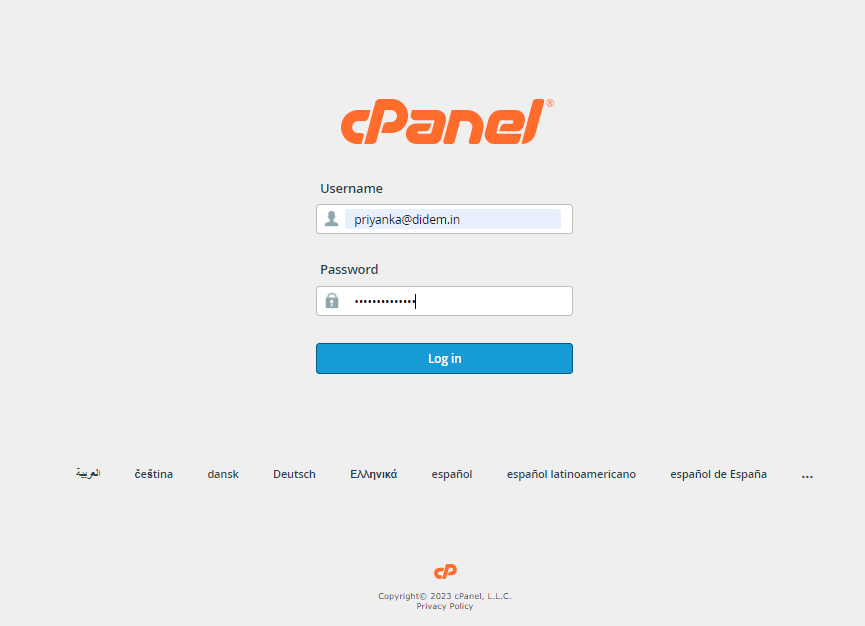
Step 1: Log in to cPanel.
Step 2: In the “Metrics” section, click the “Awstats” link or icon.
.png)
Note → If there are multiple domains in your account, you will be prompted to choose the domain for which you would like to see stats.
Step 3: Click the “View” link for the domain.

Note that you can use the navigation on the left to jump to a specific location on the page.

Step 4: On the “Reported period” line, you can choose the month and year of the stats displayed on the page. It defaults to the current month and year.

Step 5: Scroll down to Hosts (Top 25), This is where you will see IP addresses of your visitors. Select the IP from the list that is consuming high bandwidth & then block the IP.

Step 1. Login to cPanel using your Username & Password.
Step 2: Under Security, click IP Blocker.
.png)
Step 3: Under Add an IP or Range, enter the IP address, domain, or range of IPs based on the given formatting and click Add.

Step 4: A green confirmation appears confirming the IP or range is blocked from accessing your website.

Step 5: Navigate back to the main IP Blocker page to view and manage currently blocked IP addresses.

Related Articles
How to check Cpanel Logs
How to check Cpanel Logs Reference KB: https://docs.cpanel.net/knowledge-base/cpanel-product/the-cpanel-log-files/ Website Raw Access Log Website Error Logs FTP Access Log FTP Login Logs Cpanel Access Log Maillog Website Raw Access Log Option1: To ...Block xmlrpc.php brute force request in Wordpress site
Block xmlrpc.php brute force request in Wordpress websites Wordpress websites have xmlrpc requests disabled by default but some sites have it enabled and is being brute forced by hackers. This leads to increased CPU consumption on the server. To ...Block brute force attack from Plesk firewall
Block brute force attack from Plesk firewall Issue: SMTP service has been receiving unauthorised brute force requests on the server Update 1: Below logs have been found from the maillog on the server May 15 12:13:44 host plesk_saslauthd[11425]: No ...cPanel Backup Job monitoring
Cpanel Backup Job monitoring Reference KB on Cpanel Backup log location: https://support.cpanel.net/hc/en-us/articles/4402165344535-Where-are-the-cPanel-Backup-logs Reference KB on Cpanel backup on locally mounted remote filesystem: ...How to Block an IP address From Visiting My Websites Through IIS
Steps to follow to block IP address through IIS Go to the IIS Manager from Start → Administrative Tools → Internet Information Services Manager In the Connection Panel, expand the server name, expand Sites and then your website. In the Home pane, ...