How to configure two-factor authentication in zimbra webmail
Two-factor authentication in zimbra webmail
Two-factor authentication in Outlook
Two-factor authentication in zimbra webmail
1. Login to the Webmail.

2. Go to the Preferences > Accounts. Scroll down the page and click on Setup two-step authentication.

3. Now click on Begin Setup.

4. Now re-enter the password and click on Next to start setup.

5. Now add the below Key at your Authenticator app and save it and click on Next.

6. Install and Configure for OTP at Android smartphone - Please Install Google Authenticator App:
Please download the Google Authenticator apps on your smart phone to generate the verification code.
Apps Link for android phone: https://play.google.com/store/apps/details?id=com.google.android.apps.authenticator2&hl=en

7. Now enter the generated verification code from the Authenticator Application at below textbox and click on next.

8. Now click on the Finish to complete the setup.

Two-factor authentication in Outlook
N.B: If you enable the two factor authentication, then you need to generate application specific code to configure email account in your MUA (Outlook, Iphone and mobile). To generate the same, follow the step 8.
1. Now click on Add Application Code.

2. Give the any application name and click on the Next.
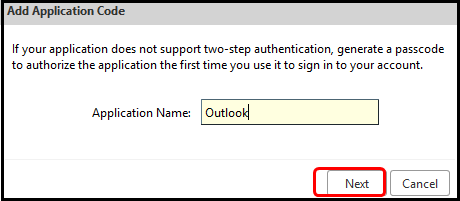
3. Now copy the generated password and click on Close to close the window.

4. Now configure the email account in outlook with the generated app-code as a Password. As shown on the figure below.

Related Articles
Enable Two Factor Authentication 2FA on WHM and Cpanel
Enable Two Factor Authentication 2FA on WHM and Cpanel Enable 2FA on WHM Enable 2FA on Cpanel Enable 2FA on WHM Panel with Root User Step 1: Click on WHM >> Two Factor Authentication and toggle the bar to make it enabled and click on save. Step 2: ...Secure SSH with Google Authenticator Two-Factor Authentication on CentOS
Two-Factor Authentication on CentOS for root user Server level activities 1. Install the open source Google Authenticator PAM module # yum install google-authenticator 2. To get the verification code # google-authenticator 3. We need to make changes ...Enable Google Authenticator with Plesk
Enable Google Authenticator with Plesk Objective: This extension offers additional user account protection with multi-factor authentication. After enabling Google Authenticator, a second step is added to the Plesk login procedure: in addition to ...Zimbra password reset from webmail
Steps to change zimbra password from webmail Step 1: Login into the Zimbra webmail Step 2: Now click on down-ward triangle > change password Step 3: A password change page will open, now give the current password > give new password > confirm it > ...How to mark a particular mail as spam/not as a spam in Zimbra Webmail
1. Login to the Zimbra Webmail using respective username and password. 2. Select on the particular email that you want to mark as a spam, right click on that mail and click on “Mark as Spam”, as shown on the below figure. 3. After clicking “Mark as ...