How to deploy WordPress manually under project at Diadem Express Cloud
Create the environment
After log-in to the panel a new environment has been created from the option ‘NEW ENVIRONMENT’.

Environment Topology for installing wordpress

Apache application server
PHP version – 7.1.0
MySQL version – 5.7 or MariaDB

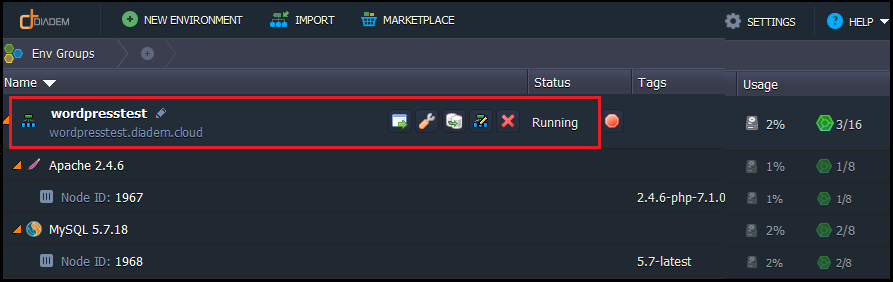
In a minute your environment with both Apache and MySQL will be created and appears in the environments list.
Upload the application
Go to official web-site and download .zip archive by clicking Download WordPress 4.8.
Download link: https://wordpress.org/download/
Open the Deployment manager.

Upload this .zip archive to the Deployment manager.
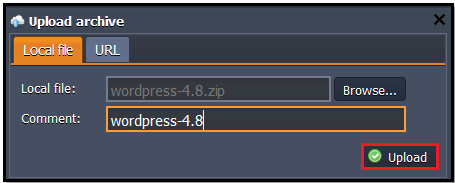
Once the package is in Express Cloud, deploy it to the environment you have just created.

Configure database
Once the deployment is finished, click Open in browser button for MySQL and open PHPMyAdmin
When you created the environment, Diadem EC sent you an email with credentials to the database. Create an account and the database with the application using these credentials.

Create a DB user with full permission with database for install wordpress.

Click the Open in browser button for wordpress project in your environment.

The WordPress installation will be started.
In the opened window fill in fields in the following way:
Database name > type database name that was created on the step of configuring database.
Database username > type username (which you've entered while creating database or just root).
Database password > type password (which you've entered while creating database or which you've got by email).
Database host > insert link of your database (without "http://" and "/").
Then click Submit.

Now run the process of installing WordPress by clicking Run the install button

Fill the last form and you will have your own WordPress in Diadem EC PHP Cloud.

Wordpress link: http://wordpresstest.diadem.cloud/wordpresstest/
Related Articles
Deploying node.js in Diadem Express Cloud
we need to login to the Diadem EC control panel, once logged in we can created a new environment. as shown in the below given picture. I have deployed a basic node.js without any load balancing and sql server, in the above picture I have marked the ...Environment Management from Diadem Express Cloud Dashboard
Environment Management from Diadem Express Cloud Dashboard Create An Environment Start and Stop the Environment Restart Required Nodes Change Environment Settings Delete Environment 1 .Create An Environment 1.1 Login to the Dashboard on app.diadem.io ...Install Magento into Diadem Express Cloud
Magento is an extremely popular open source e-commerce service powered by PHP. It provides a flexible modular architecture enhanced with agile ecosystem to continually adapt, customize and extend your platform. This tutorial shows how to deploy a ...Deploying Python with SQLite in Diadem Express Cloud.
Login to your Diadem EC panel with respective user name and password, kindly use the given below link is for quick reference to login to Diadem EC panel. Login URL: https://app.diadem.io/ Create New Environment: Click on create new environment to ...Diadem VM Cloud Management Console Overview
Diadem VM Cloud Management Console Login To Cloud Console Portal Managing the VPS Killing a process Checking System alerts Checking the Graphs Check the running services and manage them Change account password Technical Support Login To Cloud Console ...