How to enable ionCube Loader module for PHP shipped with Plesk on Linux
How to enable ionCube Loader module for PHP shipped with Plesk on Linux
- Installing ionCube Loader via the Plesk Control Panel interface
- Manually installing ionCube Loader using the Command Line interface
Reference KB :
Installing ionCube Loader via the Plesk Control Panel interface - https://support.plesk.com/hc/en-us/articles/12376924533655-How-to-enable-ionCube-Loader-module-for-PHP-shipped-with-Plesk-on-Linux
Manually installing ionCube Loader using the Command Line interface - https://support.plesk.com/hc/en-us/articles/12377380178711-How-to-update-ionCube-Loader-to-the-latest-version-for-7-3-and-7-4-shipped-by-Plesk
Installing ionCube Loader via the Plesk Control Panel interface
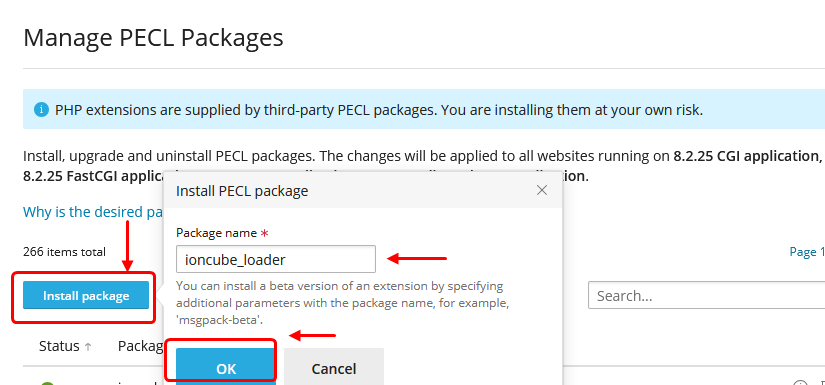
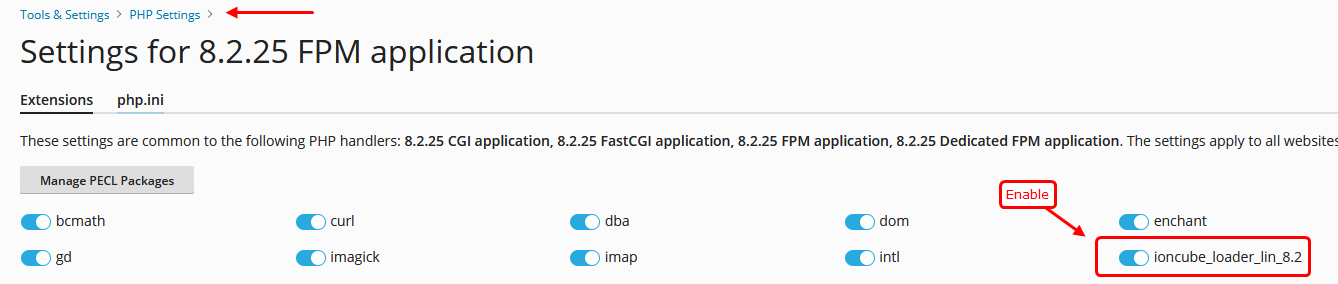
- Go to **Websites & Domains**
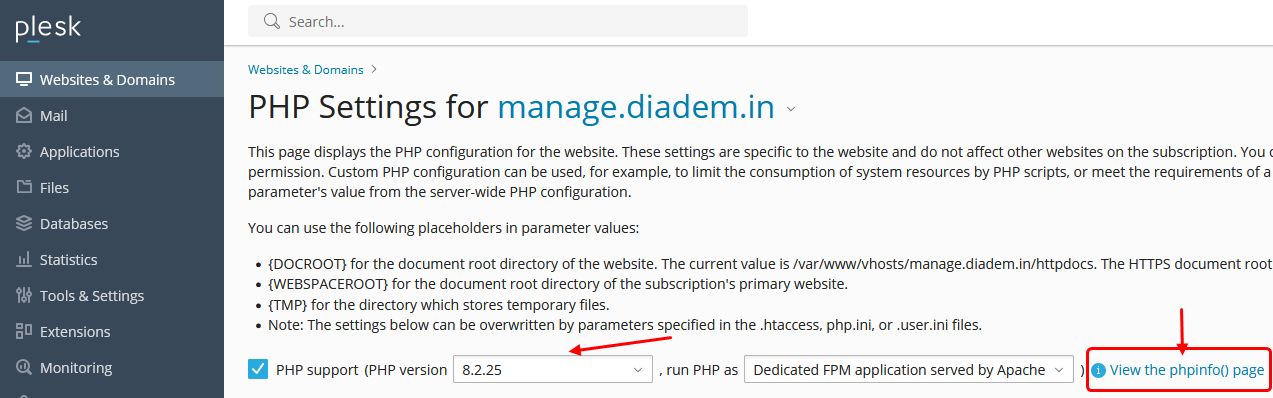
- Navigate to the **Domains Dashboard**
- Select **PHP (Dev Tools)**
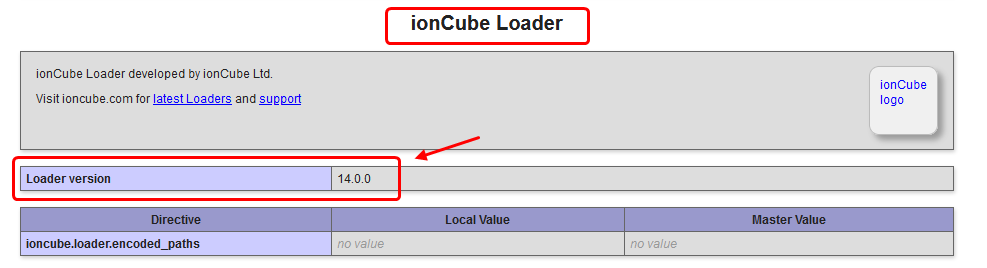
- Click on **View the phpinfo() page**
A PHP page will open displaying all the details. See the screenshots below for reference.
Manually installing ionCube Loader using the Command Line interface
The following example demonstrates how to update ionCube Loader to the latest version for PHP 7.3 and 7.4 provided by Plesk. You can adapt this process for the specific PHP version you require.
Step 1 : Connect to the server via SSH, then download the latest version of ionCube Loader using the command below and extract the compressed file:
# wget https://downloads.ioncube.com/loader_downloads/ioncube_loaders_lin_x86-64.tar.gz
# tar -xvf ioncube_loaders_lin_x86-64.tar.gz
Step 2 : Back up the existing ionCube Loader (if any), In the command below, replace the PHP version with the one you need. In this example, the process for PHP versions 7.3 and 7.4 is demonstrated.
# cp -a /opt/plesk/php/7.3/lib64/php/modules/ioncube_loader_lin_7.3.so{,.old}
# cp -a /opt/plesk/php/7.4/lib64/php/modules/ioncube_loader_lin_7.4.so{,.old}
Step 3 : Now Install the new ionCube Loader as per below command and confirm the file overwrite when prompted.
# cp -a ioncube/ioncube_loader_lin_7.3.so /opt/plesk/php/7.3/lib64/php/modules/ioncube_loader_lin_7.3.so
# cp -a ioncube/ioncube_loader_lin_7.4.so /opt/plesk/php/7.4/lib64/php/modules/ioncube_loader_lin_7.4.so
Step 4 : Now set the permissions if required
# chown root:root /opt/plesk/php/7.3/lib64/php/modules/ioncube_loader_lin_7.3.so && chmod 644 /opt/plesk/php/7.3/lib64/php/modules/ioncube_loader_lin_7.3.so
# chown root:root /opt/plesk/php/7.4/lib64/php/modules/ioncube_loader_lin_7.4.so && chmod 644 /opt/plesk/php/7.4/lib64/php/modules/ioncube_loader_lin_7.4.so
Step 5 : Restart Apache Web Server in order to apply the change:
Step 6 : Check the version by executing php -v command for the corresponding PHP version. For example, for PHP 7.3:
With the ionCube PHP Loader (enabled) + Intrusion Protection from ioncube24.com v10.2.0, Copyright (c) 2002-2018, by ionCube Ltd.
Related Articles
Plesk services logs and configuration files
Plesk services logs and configuration files Plesk Logs Error log: /var/log/sw-cp-server/error_log Access log: /var/log/plesk/httpsd_access_log Panel log: /var/log/plesk/panel.log Configuration PHP config on RHEL-based: ...Important Plesk CLI Commands
Important Plesk Linux CLI Commands If Plesk throws an error, these logs will help. /usr/local/psa/var/log /opt/psa/admin/logs /var/log/sw-cp-server/error_log /usr/local/psa/admin/logs/panel.log /usr/local/psa/admin/logs/httpsd_access_log ...Installing MongoDB for PHP on Plesk servers
MongoDB is an open source document-oriented database that provides high performance, high availability, and easy scalability. It is classified as a NoSQL database because it does not rely on a traditional table-based relational database structure. ...Enable Google Authenticator with Plesk
Enable Google Authenticator with Plesk Objective: This extension offers additional user account protection with multi-factor authentication. After enabling Google Authenticator, a second step is added to the Plesk login procedure: in addition to ...Install Redis on Plesk Server
Install Redis on Plesk Centos 7 Server Install Redis on Server Base Enable Redis PHP Extension from Plesk Reference KB: https://bobcares.com/blog/install-redis-on-plesk/ https://supporthost.in/install-redis-on-a-plesk-server/ Install Redis on Server ...