How to use Zimbra Connect for 1 to 1 Chat
How to Use Zimbra Connect Chat
The following are the steps to initiate 1 to 1 chat with other Zimbra accounts in your domain
Below are the following steps to initiate the chat process:
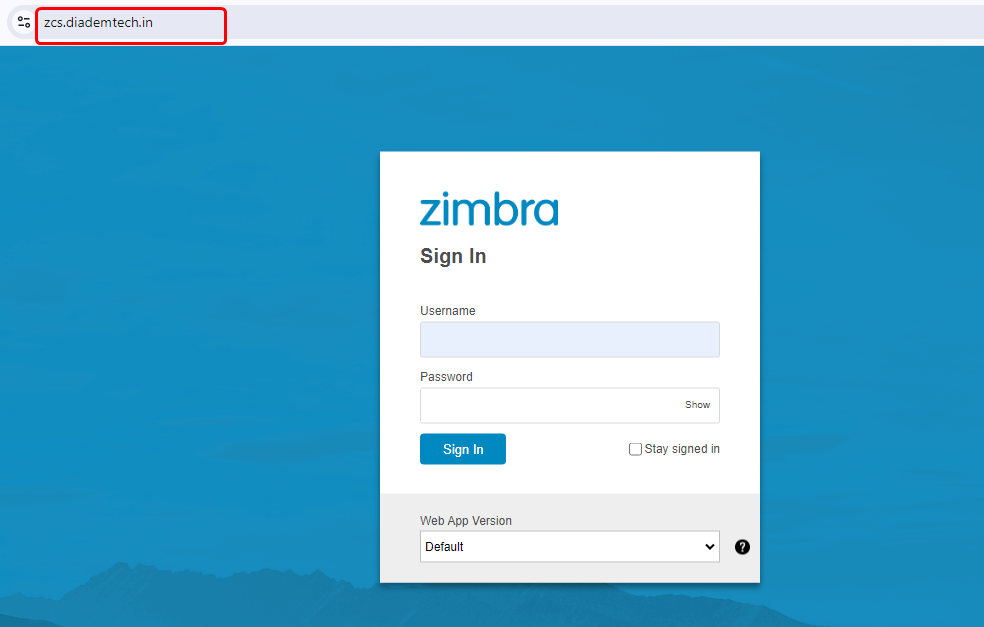
Login into Zimbra webmail panel
URL: https://zcs.diademtech.in
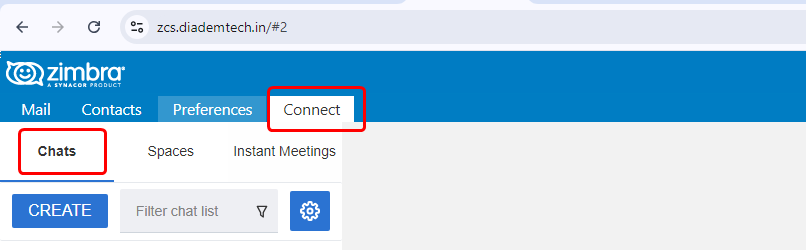
Go to the 'Connect' TAB from the webmail interface and click on the chats option
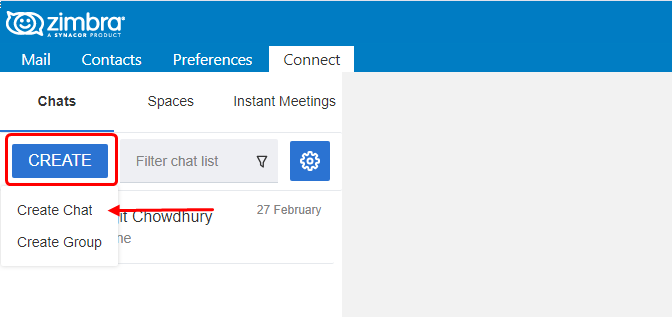
Click on the 'CREATE' bar and then click on the 'Create chat' or you can also use the 'filter chat list' option to search email address
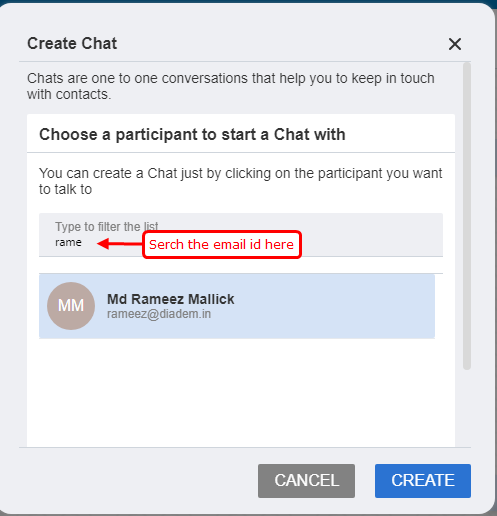
After clicking on the 'Create chat' then a new pop-up will display and search the email id and click on that 'email address' and click on the 'CREATE' option.
The 'chatbox' is open and type the message in the 'dialogue box' and press 'enter'
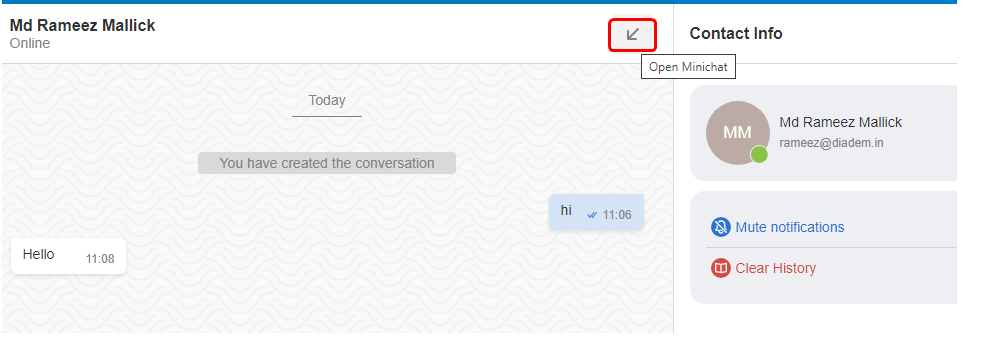
Note: In this chatbox, you can easily see the sender’s last scene, their contact information
If there is a 'single tick' means it is not seen by the sender and if it is seen 'blue colored double tick' means it has been seen
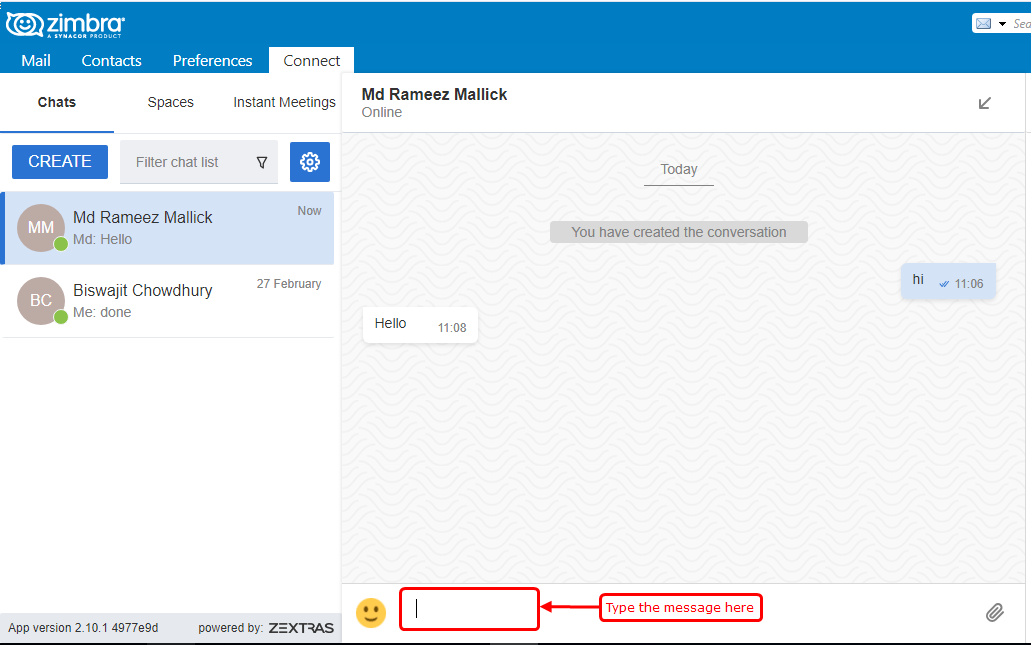
You can upload multiple files and insert comments on the individual file and folders. To do this, click on the attachment settings, which will open a Windows File Explorer window where you can select the files as needed.

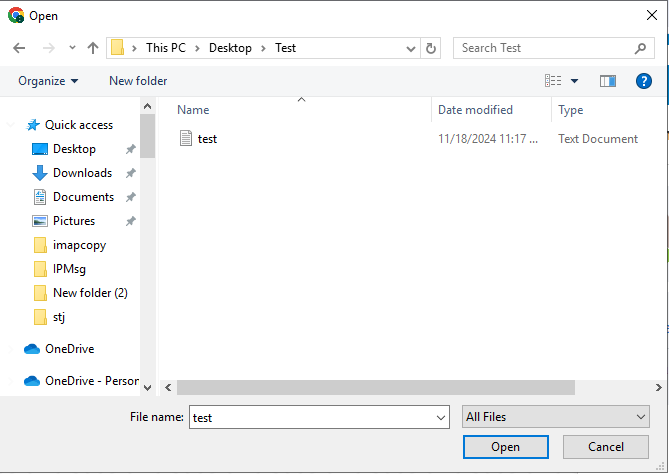
The 'chat history' option will show you your past conversion and the 'clear history' will clear your chat history with the user.
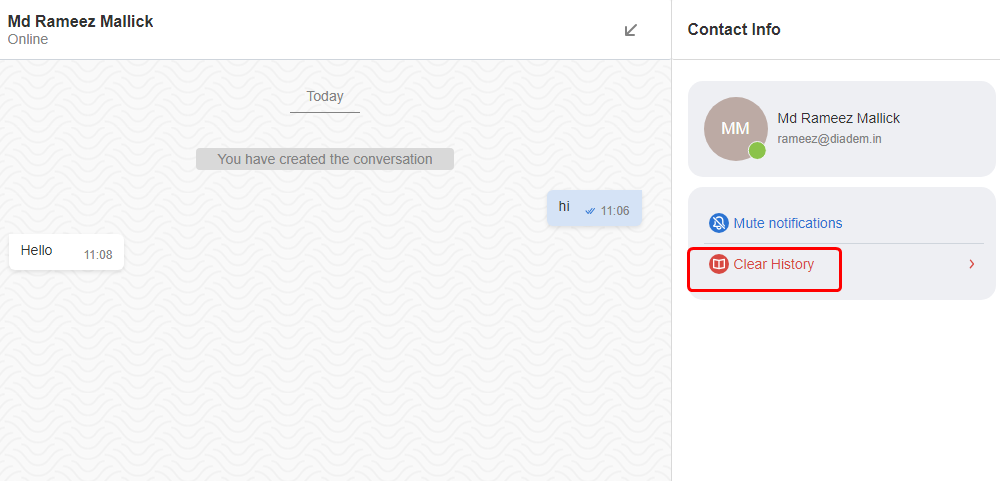
On the 'Notifications' toolbar, you can mute or open the notifications for the individual’s email address and get notified as you want

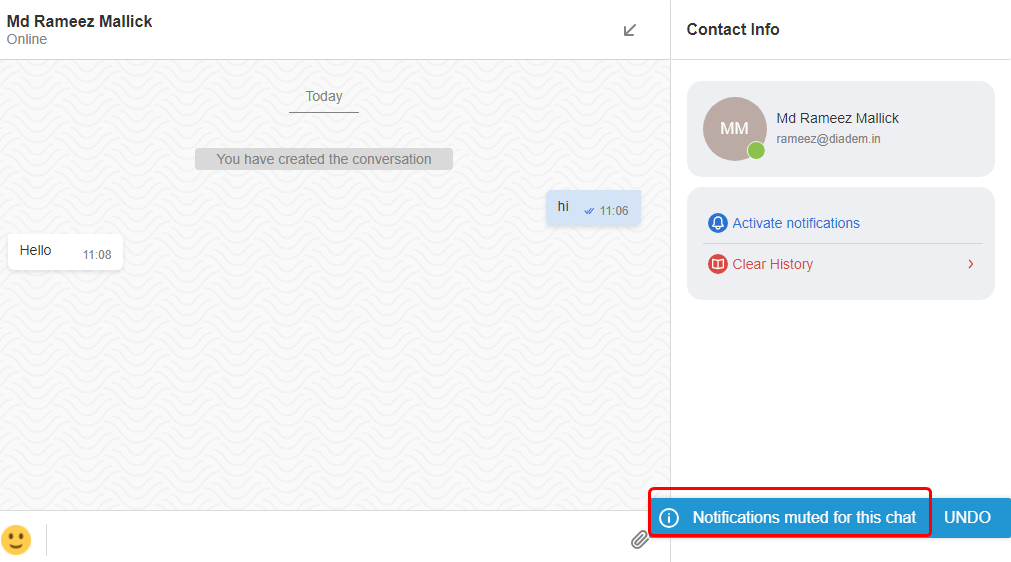
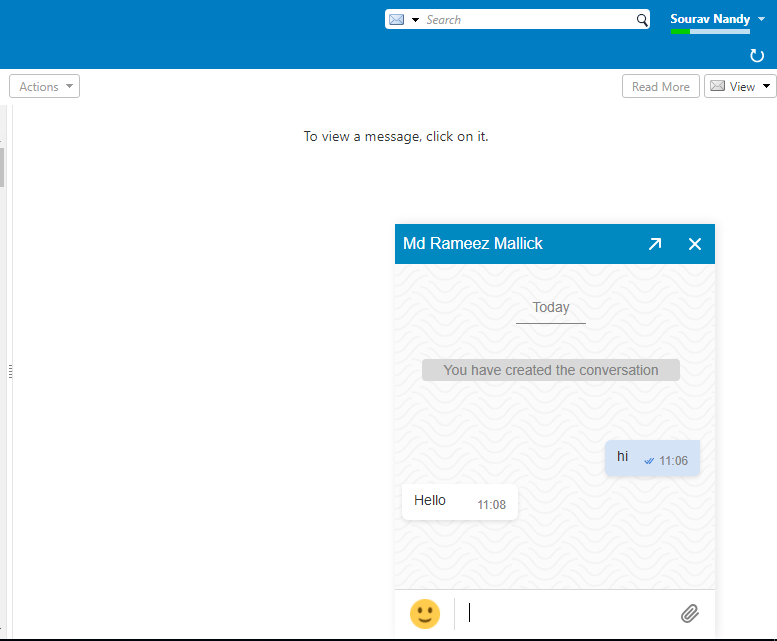
Clicking on the Arrow link, the chat screen will 'minimize' the chat window and you can continue to work on your emails and also chat on the same screen.
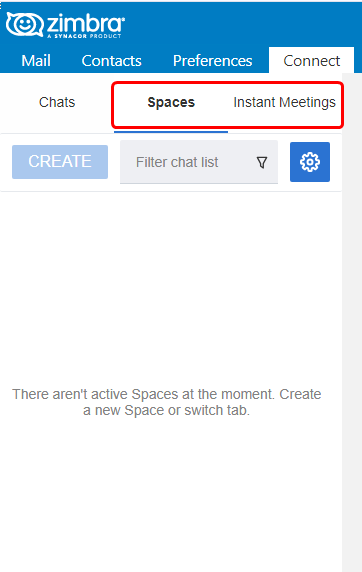
'Spaces' and 'Meetings' are addon features and to activate the same, please send an email to us at support@diadem.
Related Articles
How to install Zimbra email app on mobile (Android and IOS)
How to install Zimbra email app on mobile If you are using the Zimbra Network Edition you can download the exclusive Zimbra Email and Collaboration Suite from Android and IOS: Android: ...How to install Zimbra Desktop and PST Import
Steps to install Zimbra Desktop Zimbra Desktop Folder Steps to import PST files Steps to install Zimbra Desktop If you are using the Zimbra Network Edition, you can download and install Zimbra Desktop on our PC, we will go first to the following ...Incoming and Outgoing Message Filter in Zimbra
Zimbra filter works as rules set in MUAs and in this filter we can organise our inbox according to our need, create folder move important mails and specific mails to folders. The process is shown as below: The key benefit is that the filter are ...How to switch Zimbra Webmail from Classic to Modern UI
Steps to switch the zimbra webmail from Classic to Modern UI Step 1: Login to your webmail > Click on gear icon in the upper right corner Step 2: Select the Modern UI. Step 3: The Modern Webmail will appear Step 4: Once you switch to Modern UI you ...Manage Zimbra Email Services from Client Portal
Manage Zimbra Email Services from Client Portal Quick Navigation Email Account Email Aliases Distribution Lists Domain Aliases Go To Webmail You need to login into your client account at: https://manage.diadem.in/clientarea.php Enter the email ...