Update Domain DNS records from Diadem CRM portal
How to Manage Domain Diadem CRM portal
- Managing DNS records for your domain
- Adding A Record
- Adding MX record
- Adding TXT record
- Domain Transfer Procedure
NOTE: This KB article is applicable only when your domain is registered but not hosted with us and you want to use our registrar nameservers for managing your DNS records.
Step 1: The first step is to click on login as a client in the CRM portal and then on My Domains under the Domains drop-down menu as given below.
CRM URL: https://manage.diadem.in

Step 2: Click on the radio button option as given in the screenshot below. and then click on Manage.
.png)
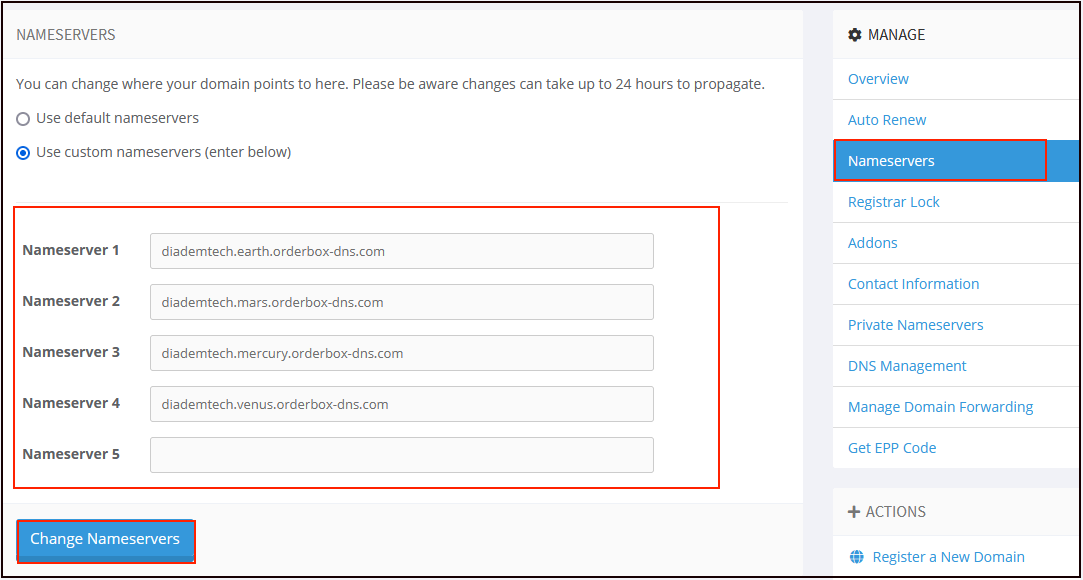
Step 4: Click on the Nameserver option to view and modify Nameserver. If you want to use the registrar nameservers, pls use the following DNS.
diademtech.mars.orderbox-dns.com
diademtech.earth.orderbox-dns.com
diademtech.venus.orderbox-dns.com
diademtech.mercury.orderbox-dns.com
Step 1: Click on Addons and then Click on Manage

Step 2: If you want to add, A records, then you can do it as given in the screenshot below.

Step 1: For adding MX record Click on Manage MX record
.png)
Step 1: Click on Manage TXT Record
.png)
Step 2: Click on Add New TXT Record
.png)
Step 3: Add TXT Record and Save
.png)
Step 1: For Domain Transfer first you need to Disable the Registrar Lock, Click on Registrar Lock

Step 2: Click on Disable Registrar Lock

Step 3: Once it is Enable you can transfer the domain by getting the EPP code

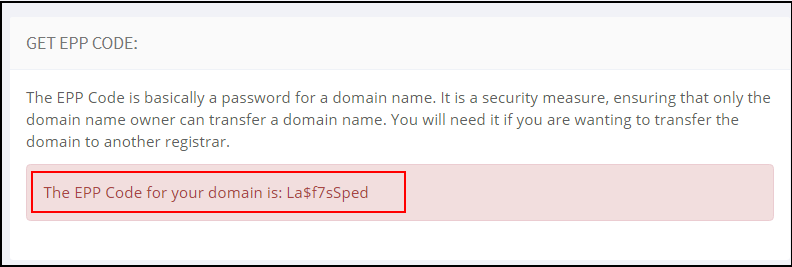
Step 4: For the EPP code for Domain Transfer you need to click on the Get EPP code under Manage

Step 5 : Now you can share the EPP Code with your New Registrar for transferring the domain
Related Articles
Manage Your Hosting Account from Client Portal
Managing Your Hosting Account from Client Portal Managing your Plesk Hosting Account through your Customer Portal Add a domain to your hosting service Create a Database Add Domain Aliases Manage DNS settings Email Accounts Email Forwarding FTP Access ...Manage Your Hosting Account from Client Portal
Managing Your Hosting Account from Client Portal Managing your Plesk Hosting Account through your Customer Portal Add a domain to your hosting service Create a Database Add Domain Aliases Manage DNS settings Email Accounts Email Forwarding FTP Access ...Generate Paid SSL Certificate through Client Portal and Plesk
Generate Paid SSL Certificate through Client Portal and Plesk To generate a certificate from Plesk we can click on generate a new certificate as per the steps below. If CSR is already generated, then go to Step 3. Step 1: For Generating the SSL ...Generate Paid SSL Certificate through Client Portal and Plesk
Generate Paid SSL Certificate through Client Portal and Plesk To generate a certificate from Plesk we can click on generate a new certificate as per the steps below. If CSR is already generated, then go to Step 3. Step 1: For Generating the SSL ...Manage Zimbra Email Services from Client Portal
Manage Zimbra Email Services from Client Portal Quick Navigation Email Account Email Aliases Distribution Lists Domain Aliases Go To Webmail You need to login into your client account at: https://manage.diadem.in/clientarea.php Enter the email ...