Access files using file manager in CWP
Access files using file manager in CWP
Step 1: Follow the steps to access any files through file manager
1. Click on the file management on the navigation menu and click on FTP File manager.
.png)
Step 2: A new window will open for the file management, from where you can access all the files
Process to manage are given below,
.png)
1. Select the directory from the left panel.
2. To create directory from right panel

3. To create files under the selected directory (file extensions also needed)

4. To upload any files click on the upload button, and upload from local directory.

5. To select all files under the directory.
6. To select inverse of the selected files.
7. To delete any files or directory.
8. To copy any files select the files and mentioned the directory on the left panel where to paste.
9. To move any files select the files and mentioned the directory on the left panel where to paste.
10. To compress, select files and directory, and click on compress button.

To decompress, click the decompress which you want to extract.

11. To switch the view mode of permissions, click on resolve Id.
12. To change the permission of any files or directory, click on permission and change the value.
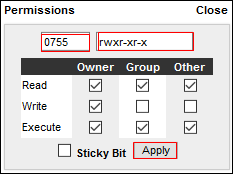
13. For further changes or view files
A. To delete selected file, click on delete
B. To rename selected files, click on the rename
C. To edit code-base of selected files, click on edit. A popup will open where you can edit code and save changes
D. To view any code-base files, click the view on that file. A popup will open to view as in browser for that file

Related Articles
Plesk services logs and configuration files
Plesk services logs and configuration files Plesk Logs Error log: /var/log/sw-cp-server/error_log Access log: /var/log/plesk/httpsd_access_log Panel log: /var/log/plesk/panel.log Configuration PHP config on RHEL-based: ...How To manage files with Plesk File Manager
Manage files using Plesk File Manager Objective: Plesk provides a built-in file manager so you can manage all the files on your subscription. The file manager is used to upload, remove and organize all website files. Step 1: Accessing File Manager in ...How to download website backup using plesk control panel
Steps to download website backup using Plesk Step 1: At first login to the Plesk control panel and click on Website & Domains then select the domain for which you want to take the backup and then go to file manager. Step 2: Select the folder (or ...Plesk File Manager Features
Plesk File Manager Features Objective: Plesk provides a built-in file manager so you can manage all the files on your subscription. The file manager is used to upload, remove and organize all website files. Step 1: Accessing File Manager in file ...Plesk Custom File Extension Support
Plesk Custom File Extension Support Issue: Problem with the ".htaccess" file and the "include" function, resulting in the top panel and footer not appearing on the website as the include files are not processed in the web server Step 1: Navigate to ...