Plesk File Manager Features
Plesk File Manager Features
Objective: Plesk provides a built-in file manager so you can manage all the files on your subscription. The file manager is used to upload, remove and organize all website files.
Step 1: Accessing File Manager in file manager
1. Visit the URL http://<your_domain>:8880 or https://<your_domain>:8443 (For SSL) and login.
2. Click on file manager for selected domain

Step 2: Creating, managing files and directiory from File Manager in Plesk
Following are the steps to manage any files or directory from File Manager.

1. To upload any files on selected directory click on upload file, a popup will open, upload the file.

2. To create any file or directory click new, then click files or directory which you need to create.

3. To copy any files or directory, select those and click copy link. A popup will ask where to copy all files.

4. To move any files or directory, select those and click move link. A popup will ask where to move all files.
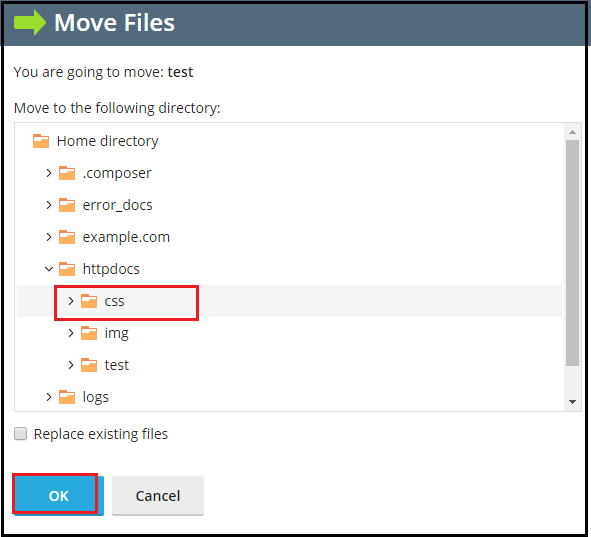
5. To remove files, select files and click the remove link. A popup will open to confirm, click yes to remove.
.png)
6. To archive any files, select them and click Add to archive. A popup will open, input the compress file name and click OK.

7. To extract any compressed file, select and click on Extract files. A popup will confirm the path and about replacing old files.

8. Click on the settings link on the right to modify the layout of the file manager.

Related Articles
How To manage files with Plesk File Manager
Manage files using Plesk File Manager Objective: Plesk provides a built-in file manager so you can manage all the files on your subscription. The file manager is used to upload, remove and organize all website files. Step 1: Accessing File Manager in ...Plesk Custom File Extension Support
Plesk Custom File Extension Support Issue: Problem with the ".htaccess" file and the "include" function, resulting in the top panel and footer not appearing on the website as the include files are not processed in the web server Step 1: Navigate to ...Plesk services logs and configuration files
Plesk services logs and configuration files Plesk Logs Error log: /var/log/sw-cp-server/error_log Access log: /var/log/plesk/httpsd_access_log Panel log: /var/log/plesk/panel.log Configuration PHP config on RHEL-based: ...Important Plesk CLI Commands
Important Plesk Linux CLI Commands If Plesk throws an error, these logs will help. /usr/local/psa/var/log /opt/psa/admin/logs /var/log/sw-cp-server/error_log /usr/local/psa/admin/logs/panel.log /usr/local/psa/admin/logs/httpsd_access_log ...Plesk compatibility mode for legacy option
Plesk compatibility mode for legacy option (Separate SSL/TLS and non-SSL/TLS content) Problem: Opening the website with https shows a default placeholder page as given below: “This is the placeholder for domain <domain name>. If you see this page ...