How To Restore a Microsoft SQL Database Backup Using SQL Server Management Studio
Steps to Restore a Microsoft SQL Database Backup Using SQL Server Management Studio.
- Open SQL Server Management Studio and Connect to the SQL Server you want to restore the database to.

- Once you Connected to the SQL server, right click on the Databases folder and select ‘Restore Database’.

- First Select From Device then Click the ellipses button next to From device under the Source for restore section.
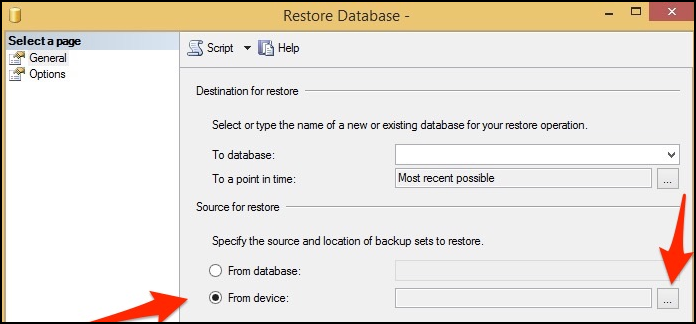
- Set File as the backup media and then click Add.

- Browse to the SQL backup (.BAK) file you want to restore and Click Ok.

- Then Click Ok.

- n the Restore Database dialog, type or select the name of the database you want this backup restored to.
- If you select an existing database, it will be replaced with the data from the backup.
- If you type a database name which does not currently exist in your SQL Server installation, it will be created.
- Next, select the restore point you want to use. Since a SQL backup file can hold multiple backups you may see more than one restore point listed.

- Click OK. You will get database successful restore Message.

- Once your restore options are set, click Ok.
Related Articles
Backup and restore MySQL database with Plesk
Backup and restore MySQL database with Plesk Description: In Plesk, database dumps are created in the SQL format and saved as ZIP archives. If you need to create a dump in another format or to set custom settings for a dump, use the native ...Take Full backup of MS-SQL database using management studio
To take the full backup of MS-SQL database, please follow the below steps 1. Open SQL Server Management Studio and connect to the appropriate instance of Microsoft SQL Server Database Engine in Object Explorer. 2. Expand Databases node and then right ...Restoring MSSQL database with Management Studio
Restoring MS SQL database with management Studio To restore a database we can follow two below mentioned procedure to restore the database. Restore SQL database using T-SQL Restore SQL database using SQL Server Management Studio Restore SQL DB using ...Delete MSSQL Server DB from SQL Management Studio
How to Delete a SQL Server DB from management studio Before we begin we must know about Limitations and Restrictions while deleting a database from SQl server DB. System databases cannot be deleted. Prerequisites Delete any DB snapshots that exist on ...How to Create MS SQL Database Through SQL Server Management Studio
This article will assist you to create MS SQL database through SQL Server Management Studio. 1. Open Run box by pressing Windows key + R. 2. In Run box type SSMS and hit enter. This will open connect to server window.