How To Run Sara Tool For M365 diagnostic with Outlook
Download and install SaRA from Microsoft's Outlook Support Center site. Open the program. The main screen offers different categories for you to select depending on the problem you're experiencing.Below Mentioned URl will help you to download Sara-tool.
https://diagnostics.outlook.com/#/
- Select the category i.e Outlook.
- Click and check the checkbox beside I am working with Microsoft support personal on this.
- Click Next to Continue.
.jpg)
- Select the Problem that you are having, here we have selected I am having problems sending, receiving,or finding email.
- Click on NEXT to continue.

- Now check check box beside Yes, as you are running Sara tool on effected computer.
- Click Next to Continue.

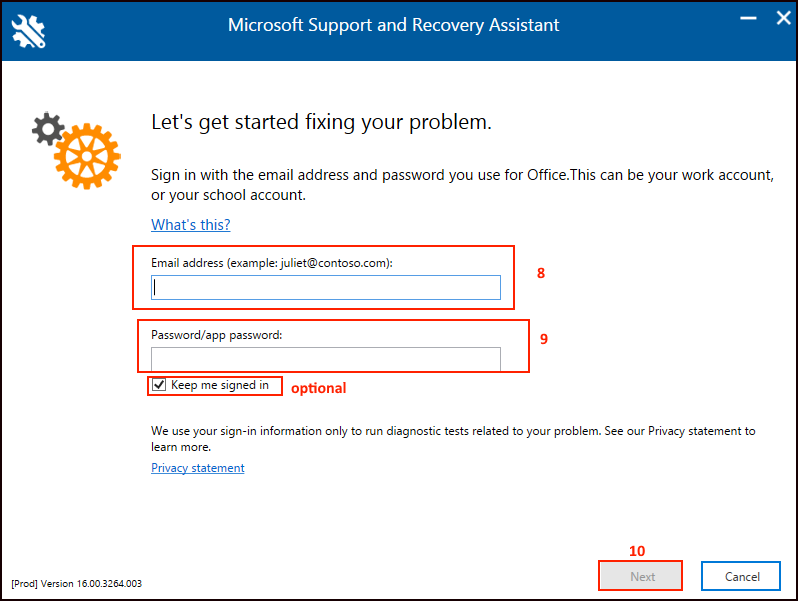
- Type the email address which you gave configured into your Outlook.
- Type the password of your email address.
- Click on Next.
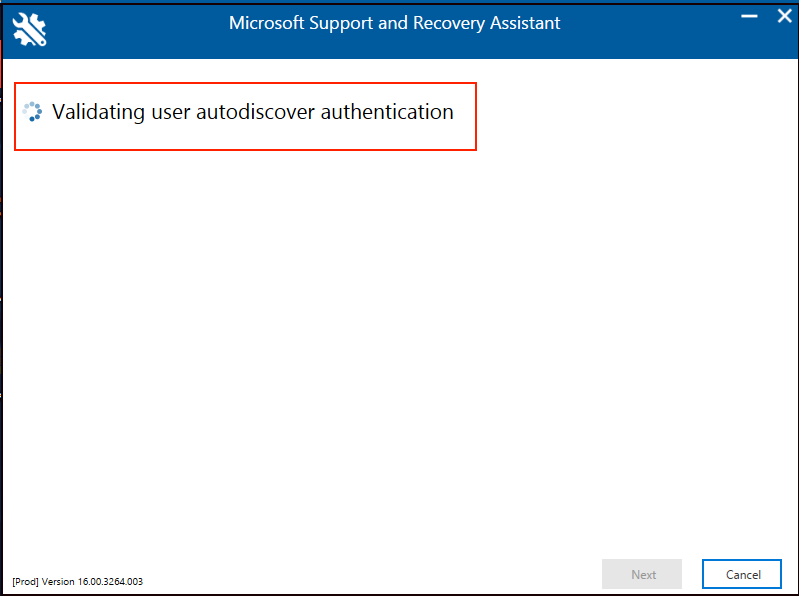
- Validating user auto discover authentication will run wait till it completes.
- Now Sara-tool will find out issue which is existing in your Outlook.
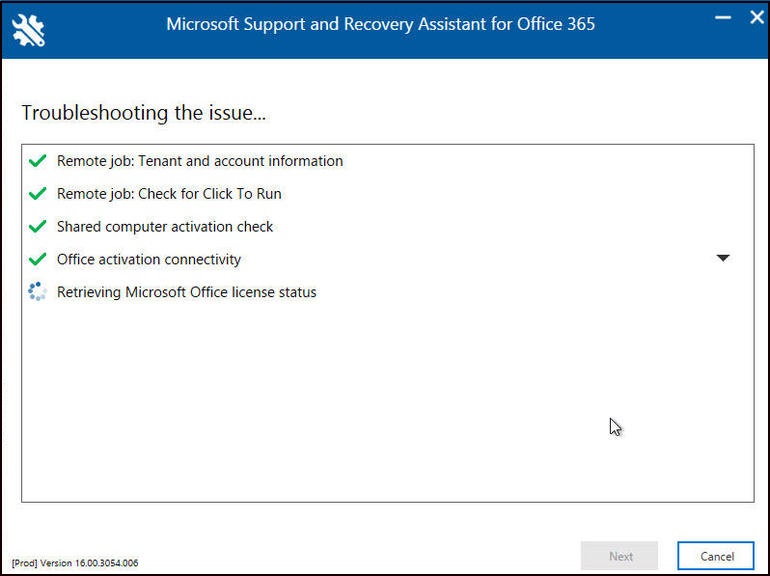
Note : The results will vary depending on the problem and SaRA's own abilities. It may tell you that the problem is resolved. If so, try opening and using the misbehaving application to confirm this. It may tell you that it couldn't find a problem or that it found a problem but couldn't resolve it. In this case, your next step may be to contact Microsoft Support—you can use SaRA to gather data that could prove helpful.
- Restart the program and choose the category for Advanced Diagnostics. Select the type of diagnostic to run. Check the box to indicate that you're working with Microsoft support personnel on this issue. Click Next
.jpg)
- Confirm that this is the affected computer. Click Next. The tool may ask you to open Outlook or another program. If you can, open the program. If not, click the Skip button. The tool then gathers the necessary configuration data. Click Next.

- At the next screen, click on the links to view the generated log files. Click the link to See All Logs to open a folder containing all the log files. Finally, click Send if you wish to send the log files to Microsoft Support for troubleshooting.
.jpg)
At the next screen, click on the links to view the generated log files. Click the link to See All Logs to open a folder containing all the log files. Finally, click Send if you wish to send the log files to Microsoft Support for troubleshooting.
Note : Please make sure the copy of you Outlook license is Original, or else support shall not be provided.
Related Articles
How to resolve the Password prompt issue of MS Outlook app
Step 1: Go to Control Panel and open User Accounts Step 2: Select Manage Your Credential Step 3: Select Windows Credentials Step 4: Go through the saved logins and find the ones that have the word Outlook in their name. Then, open each of these and ...Outlook and Outlook express troubleshooting tips
At certain occasions you may receive various kinds of errors in your outlook or outlook express while sending or receiving mail. We have highlighted some common errors and provided the troubleshooting steps you need to follow to resolve them. ERRORS ...MS Outlook setup on Mac OS
Step: 01 1. For configuring a new outlook POP account on MAC system, please click the Accounts option in the Tools menu. Step: 02 2. Here you will see the Accounts window. Please click the E-mail Account option. Step: 03 3. Then it will enter the ...Setup MS Outlook 2013 with SSL Support
Setup MS Outlook 2013 with SSL Support Below is the list of ports for accessing email on your local client: Incoming mailserver : <server hostname or domain name> Outgoing mailserver : <server hostname of domain name> POP3: 110 default (995 for SSL) ...Export emails from Mailstore to Outlook PST
To export archived emails from Mailstore to Outlook in PST, below steps are to be followed: Assuming that you have already logged in to Mail Store, if you still struck in login please do check the given below link for login to Mail Store: ...