MS Outlook setup on Mac OS
Step: 01
1. For configuring a new outlook POP account on MAC system, please click the Accounts option in the Tools menu.

Step: 02
2. Here you will see the Accounts window. Please click the E-mail Account option.
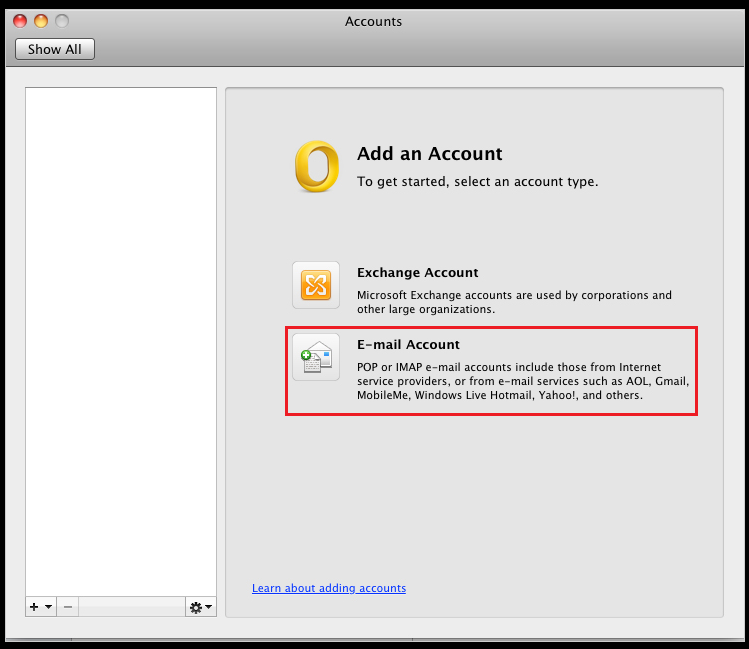
Step: 03
3. Then it will enter the account information window. Please fill in your email settings as follows:
E-mail Address: Enter your email address.
Password: Enter your email password.
User Name: Enter your email address again.
Type: Set the menu to POP.
Incoming server: Enter your incoming mail server. Your incoming mail server is mail.(your domain name). So, for example, if your domain name were example.com, your incoming mail server would be mail.example.com.
Override default port: Make sure this box unclicked.
Use SSL to connect (recommended): Make sure this box is unclicked.
Outgoing server: Enter your ougtoing mail server. Your outgoing mail server is the same as your incoming mail server (mail.example.com).
Override default port: Click this box, then put the default port number 25.
Use SSL to connect (recommended): Make sure this box is unclicked.
Then click the Add Account button.

Step: 04
4. Now you will see a dialog box asking whether to allow Microsoft Outlook to access your confidential information stored in your Mac OS X keychain. The reason Microsoft Outlook wants to access the keychain is to store your user name and password for accessing incoming and outgoing email. Please click the Always Allow button. This allows Outlook to store the user name and password now, and also retrieve it each time you attempt to receive or send messages.
NOTE: If you click the Allow or Deny buttons, you will have to enter your email password manually each time if you want to send and receive messages.

Step: 05
5. Now it will takes you back to the Accounts window, and your newly created account is listed at the left side of the window.
Microsoft Outlook automatically adds the Account description, but we recommend changing outlook’s default entry to your mail address so you can easily identify which account corresponds to which email address if you have multiple accounts in your outlook.
Now click the More Options button below the Outgoing server.

Step: 06
6. In the More Options window, change the popup menu for Authentication to Use Incoming Server Info, then click the OK button to return to the Accounts window. Close the Accounts window to return to the main Outlook email window. You’re now ready to send and receive email.
.png)
Step: 07

Note: A POP connection removes the email messages from the server during download. If you would like to leave copies on the server, click Advanced and check the Leave a copy of messages on server check box and click OK.
Related Articles
How to resolve the Password prompt issue of MS Outlook app
Step 1: Go to Control Panel and open User Accounts Step 2: Select Manage Your Credential Step 3: Select Windows Credentials Step 4: Go through the saved logins and find the ones that have the word Outlook in their name. Then, open each of these and ...Setup MS Outlook 2013 with SSL Support
Setup MS Outlook 2013 with SSL Support Below is the list of ports for accessing email on your local client: Incoming mailserver : <server hostname or domain name> Outgoing mailserver : <server hostname of domain name> POP3: 110 default (995 for SSL) ...Office 365 - Apple Mail Configure (Mac OS X 10.11 - 10.13)
Follow to steps configuring your Office 365 Exchange Online account with Apple Mail for Mac OS X Open Apple Mail. > From the Mail drop-down menu, select Add Account... Select Exchange, then click Continue Enter a display name for your account in the ...Retrieve email header in MS Outlook and Outlook Express
Outlook 2016 Outlook 2013 Outlook 2010 Outlook Express Retrieve email header in MS Outlook and Outlook Express The email header, containing details about the sender, route, receiver,date and time of sending or receiving the mail etc. Using the e-mail ...Connect to IMAP server of Diadem MailStore with MS Outlook
Step 1:Go to Outlook File menu choose the option Info then Account Settings again Account settings to reach to the account settings. Step 2:Click on New to create a new account. Step 3:Now choose the option Manual setup or additional server types and ...