Office 365 - Apple Mail Configure (Mac OS X 10.11 - 10.13)
Follow to steps configuring your Office 365 Exchange Online account with Apple Mail for Mac OS X
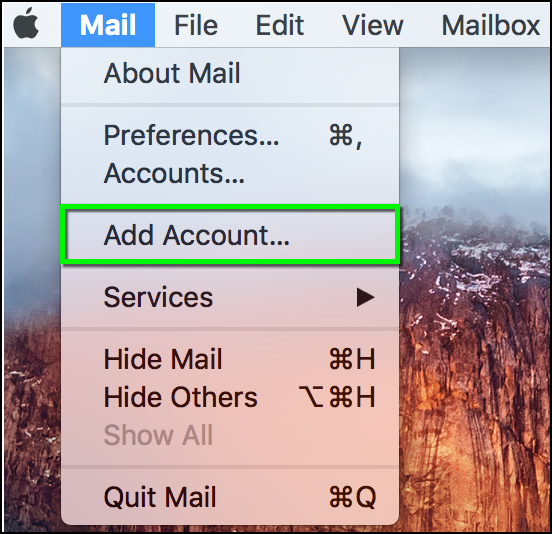
- Open Apple Mail. > From the Mail drop-down menu, select Add Account...
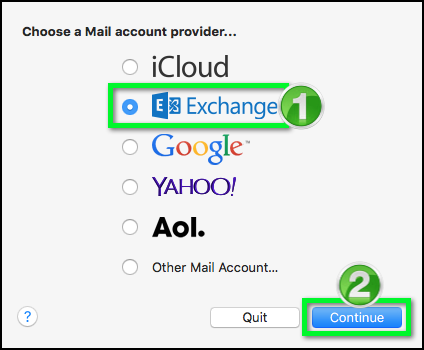
- Select Exchange, then click Continue
- Enter a display name for your account in the Name field.

- For the Email address field, enter your CULoginName@colorado.edu address and in the password field, enter your IdentiKey password. Click Continue.

- Select the apps you wish to sync, then click Done.

- Next, you'll want to add your email alias (e.g. first.last@colorado.edu) to your Account in Apple mail. This will prevent you from receiving your own message when you click reply all in an email message.
- Select the Mail drop down menu, then choose Preferences.

- In order to edit Aliases connected to your account, select the Accounts icon from the toolbar and be sure to select the Exchange account if you have more than one account listed. In the Outgoing Mail Server drop-down menu, select None

- Click the General icon in the toolbar to open a dialog box that will save changes

- Click on the Accounts icon again and you'll see the Alias and Email Address fields will no longer be greyed out. in the Email Address text field, enter any other aliases you have separated by commas

- Alternatively, you can select the drop down in the Alias field, select Edit Aliases, then use the + and - icons to add or edit email aliases. Click OK when finished to save changes.

- In the Outgoing Mail Server drop-down, select Exchange.

- Again, click the General icon in the toolbar to save changes. Close the preferences window.

Related Articles
MS Outlook setup on Mac OS
Step: 01 1. For configuring a new outlook POP account on MAC system, please click the Accounts option in the Tools menu. Step: 02 2. Here you will see the Accounts window. Please click the E-mail Account option. Step: 03 3. Then it will enter the ...How To install onlyoffice on ZCS 10.0.x
How To install onlyoffice on ZCS 10.0.x Follow the below steps to install onlyoffice module on zimbra server. Step 1 : Run the below command as root to enable onlyoffice repo # cat > /etc/yum.repos.d/zimbra-onlyoffice.repo <<EOF [zimbra-onlyoffice] ...Email id configure on Apple iPhone iOS
Step: 01 1. Please go to the Start screen, for configure an email id on Apple iPhone iOS 7. And now please choose Settings. 2. Scroll down the menu and choose Mail, Contacts, Calendars. Step: 02 3. Choose Add Account. 4. Now select your account type. ...How To Configure Email ID on Apple iPad
How To Configure Email ID on Apple iPad Step 01: Go to Settings on the iPad home screen. Step 02: Click on Mail, Contacts, Calendars and then tap on Add Account. Step 03: Select the account type as Other. Step 04: Enter the account information like ...Creating POP3 account in Apple Mail
Run Apple Mail. If you run it for the first time and do not have any mail accounts configured in it, skip the next step: Apple Mail will take you directly to creating one. Open the Adding Mail Account wizard: Click Mail > Preferences.... Select the ...