Obtaining a Server Certificate from Let's Encrypt Using Certify The Web
Obtaining a Server Certificate from Let's Encrypt Using Certify The Web
Certify The Web (a.k.a Certify) is a Let's Encrypt GUI for Windows, allowing you to request, deploy
and auto-renew free SSL/TLS certificates from the letsencrypt.org Certificate Authority
We need to follow the below-mentioned process to complete the setup of the SSL certificate.
Install Certify The Web ("Certify")
Step:1 Open the URL for downloading Certify:- https://certifytheweb.com
.png)
Step:2 Run the installer as an Administrator

Step:3 Accept the license agreement and then click the Next button:

Step:4 Leave the default installation path then click the Next button:

Step:5 Click the Next button:

Step:6 Click the Install button:

Step:7 Click the Finish button:
 _______________________________________________________________________________________________________________________________
Configure Certify the Web
Step:1 Launch Certify The Web, this message will be displayed, click the OK button:

Step:2 Enter your email address(supportteam@diadem.in) then click the Yes, I Agree option and the REGISTER CONTACT button:

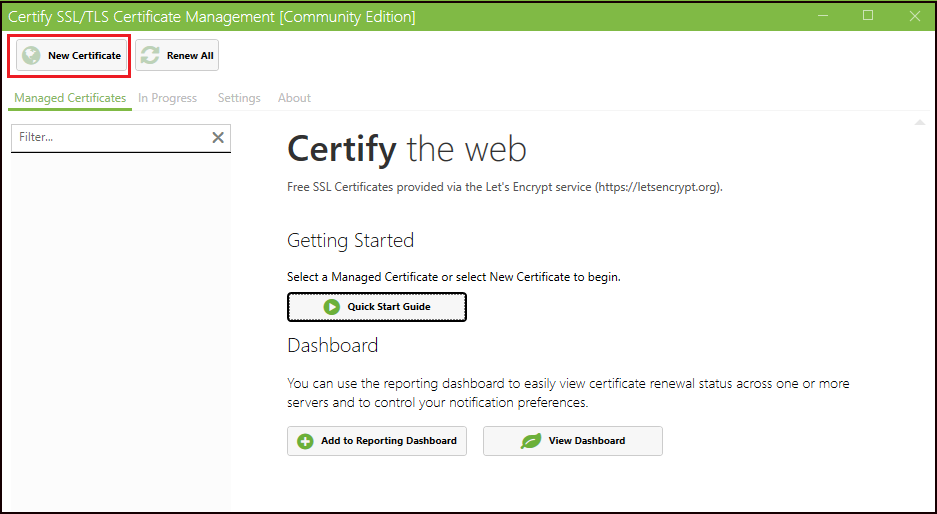
Step:3 The Certify user interface will be displayed. Click the New Certificate button:
Step:4 In the Certificate Domains property sheet:
- Change the Select Website drop-down to show the Default Web Site,
- Add your fully qualified domain name (FQDN) in the Add domains to certificate text box. In our example screenshots,
the certificate will be configured for the FQDN "fileshare.acmedrive.com". - Click the ADD DOMAINS button:

Step:5 Once the ADD DOMAINS button was clicked a new row is added to the property sheet to reflect that
the subject of the certificate will be the FQDN specified.

Step:6 Click the Authorization button to proceed to the next property sheet.
Step:7 The Domain Authorization sheet requires the Website Root Directory. Start IIS Manager and navigate in the
left tree pane to the Default Web Site, then click on the Basic Settings option in the right Actions pane:

Step:8 Select the text in the Physical Path text box and copy it to the clipboard:

Step:9 Return to the Certify The Web app and in the Domain Authorization property sheet:
- Set the Domain Match text box to the FQDN
- Set the Challenge Type drop-down to: http-01
- Paste the text from the clipboard into the Website Root Directory text box:

Step:10 Then click the Deployment button to proceed to the next property sheet.
In the Certificate Deployment sheet:
- Change the Deployment Mode drop-down to Single Site (selected in Domains tab)
- Leave Binding Add/Update as Add or Update https bindings as required
- In the Matching any of section enable Binding hostname not specified (IP only or All Unassigned)
- Leave Auto create/update IIS bindings (uses SNI):

Step:11 Then click the Show Advanced Options check box.
Clicking the Other Options button displays this sheet and the default settings are acceptable:

Step:11 Click the Test button
Step:12 Assuming the test completes successfully click the right arrow to collapse the Test Progress pane:
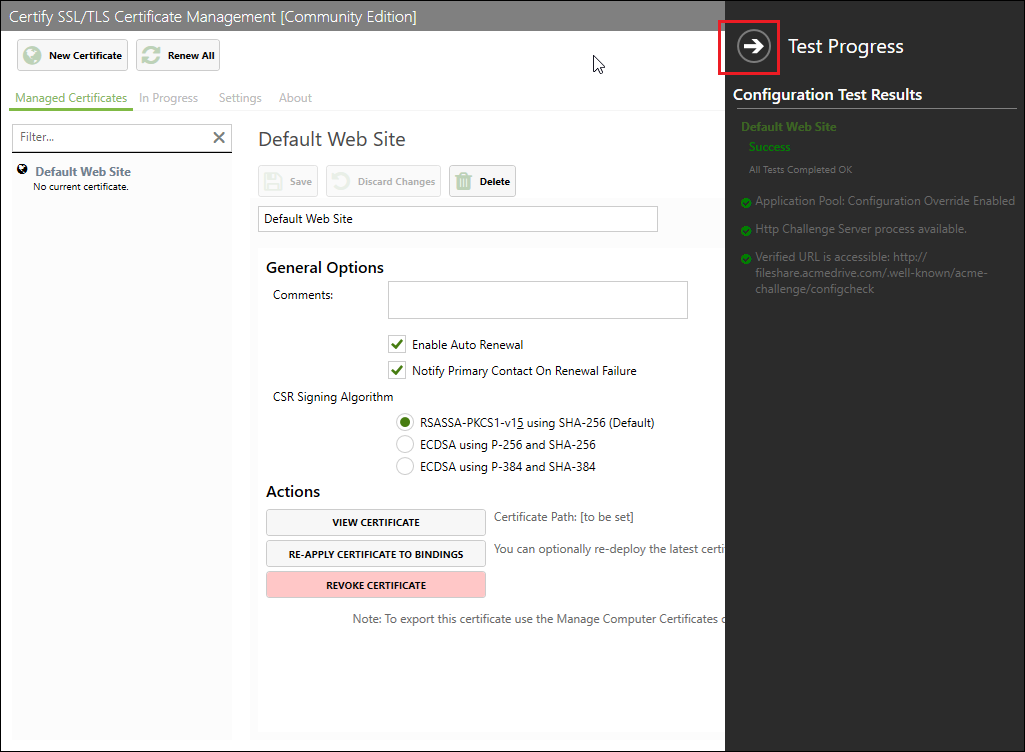
Step:13 If the test were successful proceed by clicking the Request Certificate button:

Step:14 If the test was unsuccessful, see the Troubleshooting section at the end of this article.
The request process will begin:

Step:15 It should complete successfully:

Step:16 Click the Settings tab, the defaults are acceptable:
.png) _____________________________________________________________________________________________________________________________
_____________________________________________________________________________________________________________________________
Verify the Certificate Installation
Step:1 In IIS Manager, check the bindings for TCP 443. Navigate to the Default Web Site in the left pane and click on Bindings in the Actions pane on the right:

Step:1 In the Site Bindings dialog, select the row for https, port 443, then click the Edit button:

Step:2 You should see that Certify installed the certificate it obtained and bound it to All Unassigned for TCP port 443:

Step:3 Click on the View button.
The certificate information will be displayed. Notice that Let's Encrypt certificate expires in 90 days.
This is OK since Certify will renew the certificate every 14 days by default.

Related Articles
Let's Encrypt installation in CWP
Let's Encrypt installation in CWP Step 1: follow are the steps to install let's encrypt for a domain 1. Visit the URL http://SERVER_IP:2082 and login with your username and password. 2. From the dashboard find Auto SSL under domain and sub-domain ...Creating Web User(s)
Steps to Creating Web User(s) Objective: Web User is like an FTP user, you can use this as an individual FTP account and you can host on your Web server personal Web pages for individuals who do not need their own domain names. These pages usually ...Install Free Lets Encrypt SSL certificate for your domains and sub-sudomains
Install Free Lets Encrypt SSL Certificate from Plesk Here we will get to know how to add Let's Encrypt Free SSL certificate for your domains, www and domain aliases hosted on the same server, also how to redirect HTTP to HTTPs. Step 1: Login to the ...server migration checklist (dallas to singapore) with virtuozzo for linux servers
Make a list of IPs required on the new server Sort out the domains which are not required and can be removed from the server install csf, cdp agent, plesk, license, dummy domain on new server list out the domains for which email needs to be sent to ...How to download website backup using plesk control panel
Steps to download website backup using Plesk Step 1: At first login to the Plesk control panel and click on Website & Domains then select the domain for which you want to take the backup and then go to file manager. Step 2: Select the folder (or ...