Plesk post install configuration in Window Server 2016
To perform Plesk configuration we need to enable below mentioned options:-
For Updating the Security Mode of Plesk Panel go to Under Security options click on Security Policy
.png)
Once you click on Security Policy.
Select (Allow both secure FTPS and non-secure FTP connections) under FTP usage policy.
Under Password Strength select Medium strength.
.png)
Under Security option Click on Web Application Firewall(ModeSecurity).

For enabling Firewall Click On for enabling Mode security.

Inorder to check if public IP address is configured in plesk as shared IP or not.

Click on the Public Ip address
.png)
Now select the Shared so that IP address can used as shared IP among the hosted application.
.png)
Inorder to Set dedication Application Pool to each subscription, go to Tools and Settings then scroll down and look for Applications and database under which click on IIS appliation Pool.

Then click on Global Settings Tab.

- Select Always assign one application pool to each subscription. Then click ok to finish.

Go to Mail and then Select Mail Server Settings.
.png)
Now beside Maximum message size type 35840 KBytes and under Relay options tick beside SMTP

Scroll down then provide the Ip address along with the mask then click on add button for adding IP address/mask

Under Mail select External SMTP Server.
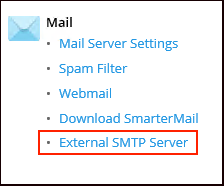
Tick beside Allow Plesk to send email notifications through this SMTP server and also tick beside Use the mail server installed with Plesk and the default and the default mail account created by Plesk.

Now under Plesk select License Management or adding your Plesk License into your Plesk Panel.

Click on Install Key.

Paste the activation code you received, then click ok and your Plesk will be ready to use.

Related Articles
Install Redis on Plesk Server
Install Redis on Plesk Centos 7 Server Install Redis on Server Base Enable Redis PHP Extension from Plesk Reference KB: https://bobcares.com/blog/install-redis-on-plesk/ https://supporthost.in/install-redis-on-a-plesk-server/ Install Redis on Server ...Plesk services logs and configuration files
Plesk services logs and configuration files Plesk Logs Error log: /var/log/sw-cp-server/error_log Access log: /var/log/plesk/httpsd_access_log Panel log: /var/log/plesk/panel.log Configuration PHP config on RHEL-based: ...Important Plesk CLI Commands
Important Plesk Linux CLI Commands If Plesk throws an error, these logs will help. /usr/local/psa/var/log /opt/psa/admin/logs /var/log/sw-cp-server/error_log /usr/local/psa/admin/logs/panel.log /usr/local/psa/admin/logs/httpsd_access_log ...How to enable Node.js Support in Plesk
Install Node.js support at Plesk Onyx through updating the plesk Plesk Onyx offers Node.js support. Node.js is an open-source, cross-platform runtime environment for developing server-side Web applications. Step-01: Installation process 1. Login to ...Server-Wide Email Settings in Plesk
Server-wide Email Settings in Plesk For managing Server Wide Email Settings in Plesk, you may follow the below options once you Login into the Plesk Panel. General options Outgoing mail mode Relay options Turn on limitations on outgoing email ...