How to enable Node.js Support in Plesk
Install Node.js support at Plesk Onyx through updating the plesk
Plesk Onyx offers Node.js support. Node.js is an open-source, cross-platform runtime environment for developing server-side Web applications.
Step-01: Installation process
1. Login to the Plesk Onyx control panel with admin user.
2. Now at the left hand side panel of plesk Onyx, click on Tools and Settings option.
3. On Tools and Settings page under Plesk option click on Update and Updates and Upgrades.

4. Once clicked a window will pop up showing “Install and Update Plesk” option , on the same page click on “Add Remove Components” option.

Step-02: Select required packages for Installation
5. On Add/Remove components screen , click on + sign near Web hosting option and select “Node.js Support”
6. Node.js requires Phusion Passenger server to be installed as its dependent component hence we will have to select the Phusion Passenger server option too.

7. Click on Continue button and wait for the installation to be finished.
8. After successful installation you will see the related message on the Plesk screen. Please select OK to close the installation session.

9. Now we can domain wide enable and access the Node.js application from plesk panel.

10. After that we need to enable the Node.js support from Plesk panel.
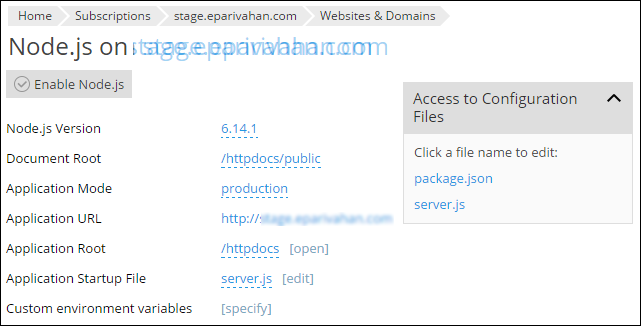
NOTE: To install dependencies for Node.js application and install websocket modules at Plesk server, please follow the below given link:
Link: https://kb.diadem.in/how-to-install-dependencies-for-nodejs-application_1117.html
Related Articles
Enable node.js with IIS
Configuring IIS node.js with Windows Server 2012 Before proceeding further we need to install below mentioned application:- Download Node JS for Window (https://nodejs.org/en/download/). Now for Installing IIS node, search for IIS node on Web ...How to install Dependencies for Node.js application
Install websocket modules for nodejs at Plesk server Step-01: Checking Node.js and npm version: 1. Login to server through SSH using root user. 2. The data directory of the Node.js application at plesk is /opt/plesk/node/<Node.js version>/* ...Install Redis on Plesk Server
Install Redis on Plesk Centos 7 Server Install Redis on Server Base Enable Redis PHP Extension from Plesk Reference KB: https://bobcares.com/blog/install-redis-on-plesk/ https://supporthost.in/install-redis-on-a-plesk-server/ Install Redis on Server ...Running node.js on Localhost
Install Node.js for your platform i.e Windows Type nodejs.org in your browsers address bar, or click the link https://nodejs.org/en/download/ Download the installer and run it. After finishing Installation open a command prompt and type : These ...Enable Google Authenticator with Plesk
Enable Google Authenticator with Plesk Objective: This extension offers additional user account protection with multi-factor authentication. After enabling Google Authenticator, a second step is added to the Plesk login procedure: in addition to ...