Enable node.js with IIS
Configuring IIS node.js with Windows Server 2012
- Before proceeding further we need to install below mentioned application:-
- Download Node JS for Window (https://nodejs.org/en/download/).
- Now for Installing IIS node, search for IIS node on Web Platform Installer then click on add then click on Install.
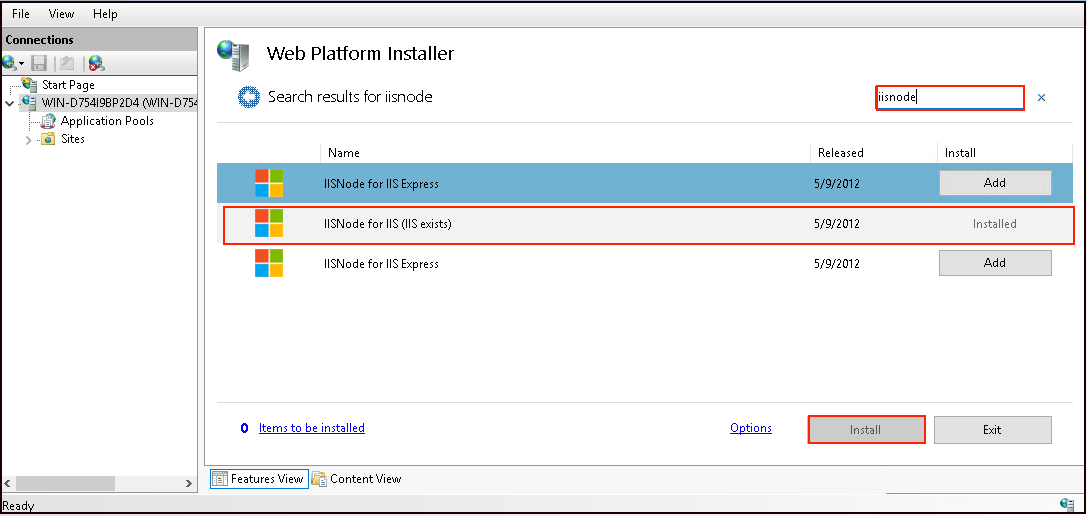
- Then open Web Platform Installer type URL Rewrite and then install the package.

- Create a folder into C drive or as per you need.
- After creating the folder provide the full write permission to the IIS_ user for managing the folder.

- Install Express and http-server in the myapp directory or the folder which you have created use below mentioned commands in command prompts:-
- npm install express --save
- npm install http-server

- Now Open IIS server manager right click on the IIS server, click on Add website.

- Add new website popup will appear.
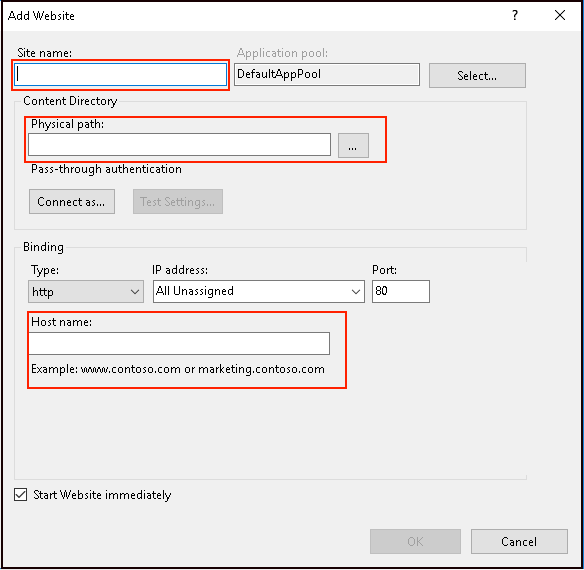
- Add the application pool for the selected website.

- Provide the Site name, website directory URL, then click on OK to continue.

- Once the express package is installed in the folder run below sample code for checking weather configuration is done properly or not. save below mentioned code in the name of app.js or as per your choice.
var express = require("express");
var app = express();
app.get("/", function(req, res) {
res.send("Hello Worlxxxxd!");
});
// This is REQUIRED for IISNODE to work
app.listen(process.env.PORT, () => {
console.log("listening");
});
- Also make sure in webconfig file provide the default page name in below mentioned point in image.

- Now access your website on your browser.

Related Articles
How to enable Node.js Support in Plesk
Install Node.js support at Plesk Onyx through updating the plesk Plesk Onyx offers Node.js support. Node.js is an open-source, cross-platform runtime environment for developing server-side Web applications. Step-01: Installation process 1. Login to ...Running node.js on Localhost
Install Node.js for your platform i.e Windows Type nodejs.org in your browsers address bar, or click the link https://nodejs.org/en/download/ Download the installer and run it. After finishing Installation open a command prompt and type : These ...Deploying node.js in Diadem Express Cloud
we need to login to the Diadem EC control panel, once logged in we can created a new environment. as shown in the below given picture. I have deployed a basic node.js without any load balancing and sql server, in the above picture I have marked the ...How to install Dependencies for Node.js application
Install websocket modules for nodejs at Plesk server Step-01: Checking Node.js and npm version: 1. Login to server through SSH using root user. 2. The data directory of the Node.js application at plesk is /opt/plesk/node/<Node.js version>/* ...How to enable website URL redirect in IIS
How to enable website URL redirect in IIS Open IIS Manager from Start >> Run >>type inetmgr Expand the server name in the connection pane, then expand the Sites and navigate to the domain. Double-click on Http Redirect option. Mark the check box ...