Plesk Server Health Monitor
Plesk Server Health Monitor Overview
Health Monitor helps you keep your Plesk installation running smoothly by keeping track of the system resources’ usage on the server and notifying you when one or more resources’ usage reaches a pre-defined threshold.
Note : For more information look for the reference url given below
https://docs.plesk.com/en-US/onyx/administrator-guide/statistics-and-monitoring/server-health-monitor.68886/
In order to access and check Server Health Monitor, follow the below mentioned steps:-
Login to your Plesk panel using your Username and Password.
Now look for the option Server Management on the left menu bar and expand it.
Click on Health Monitoring.

Server resource List of your Server will appear, which you can use for server resource monitoring and there respective health.
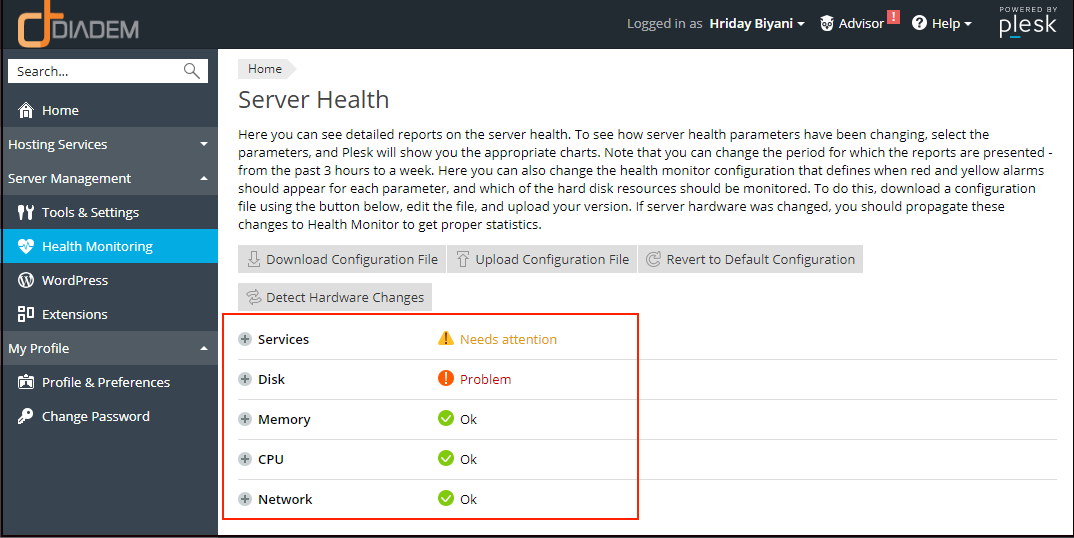
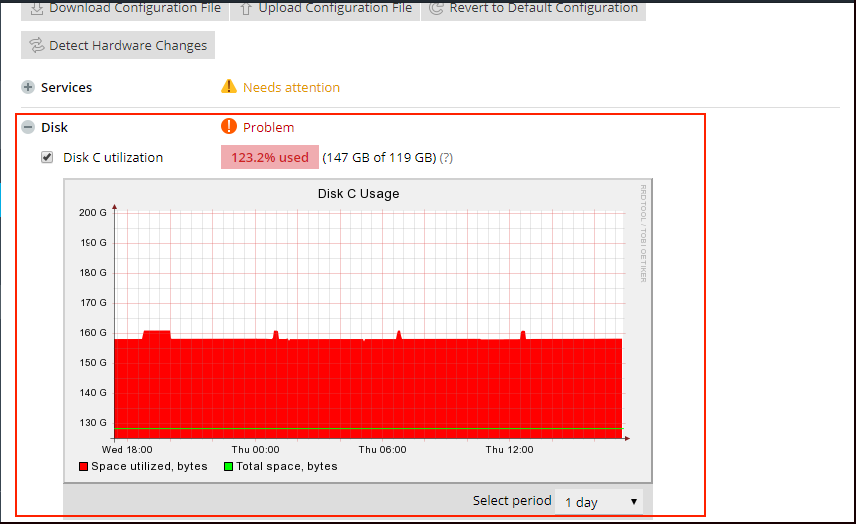
Expand the server resource which you want to check the monitoring, if you want to check the graphical monitoring just check the check box beside the disk monitoring information.

Once the option is checked you will be able to see the monitoring in graphical mode.
Configuring Alarms, Trends, and Email Notifications
By default, Health Monitor comes pre-configured with optimal settings for each resource and service. If you want to change the default settings, go to Server Management > Health Monitoring and click Download Configuration File to download the custom-health-config.xml configuration file. Edit the file according to the instructions contained within. You can change the following Health Monitor parameters:
- “Yellow” and “red” alarm thresholds for each resource or service.
- Alarm threshold type for each resource or service (exceeding an absolute value, a relative value, or a trend value).
- Trend calculation parameters.
- Email notification parameters. By default, email notifications are not configured.
Once you make the changes to the configuration file, save them and upload the file (Server Management > Health Monitoring > Upload Configuration File). The changes will take effect immediately.
For Email Notifications :
Click on profile beside Logged in as then click on Edit profile.
Fill up the mandatory fields and provide the email address for Health Monitoring notification.

- Images are not SEO standards
- URL is not linked
- Numbered bullets are not reqd
- Images can be zoomed in.
- First 2 images are not relevant
- Email alert needs to be updated
- Some more text is reqd.
Related Articles
How to install Server Health Monitor, watchdog in Plesk
Installing Health Monitor and Watchdog Health monitor in monitoring and keeping track of the server resources and notifying the admin if the resources crosses the threshold limit. Install Health Monitor Step 1: Installing Health Monitor To Install ...Install Redis on Plesk Server
Install Redis on Plesk Centos 7 Server Install Redis on Server Base Enable Redis PHP Extension from Plesk Reference KB: https://bobcares.com/blog/install-redis-on-plesk/ https://supporthost.in/install-redis-on-a-plesk-server/ Install Redis on Server ...Server Resource Utilisation Monitoring with Plesk
Plesk Server Monitoring helps to keep your Plesk running smoothly by tracking the server resource usage and notifying you when one or more resource usage reaches a predefined threshold. Note : For more information look for the reference url given ...Server-Wide Email Settings in Plesk
Server-wide Email Settings in Plesk For managing Server Wide Email Settings in Plesk, you may follow the below options once you Login into the Plesk Panel. General options Outgoing mail mode Relay options Turn on limitations on outgoing email ...Important Plesk CLI Commands
Important Plesk Linux CLI Commands If Plesk throws an error, these logs will help. /usr/local/psa/var/log /opt/psa/admin/logs /var/log/sw-cp-server/error_log /usr/local/psa/admin/logs/panel.log /usr/local/psa/admin/logs/httpsd_access_log ...