Setup Watchdog Service Monitoring in Plesk
Setup Watchdog Service Monitoring in Plesk
The Watchdog component is a solution that ensures that your server is clean from malware, all services are up and running and there is enough free disk space on the server.
Watchdog can start, stop, and restart the services it monitors, and it can be configured to take actions depending on the stability of a service over some time period.
It can run other utilities and notify you when disk space usage has reached the specified amount.
For the purpose of monitoring services and disk space usage, Watchdog uses the monit utility.
For the purpose of scanning the server for malware, Watchdog uses the Rootkit Hunter utility.
For more information please follow below mention Plesk KB article.
https://docs.plesk.com/en-US/onyx/administrator-guide/server-administration/watchdog-system-monitoring-component.70443/
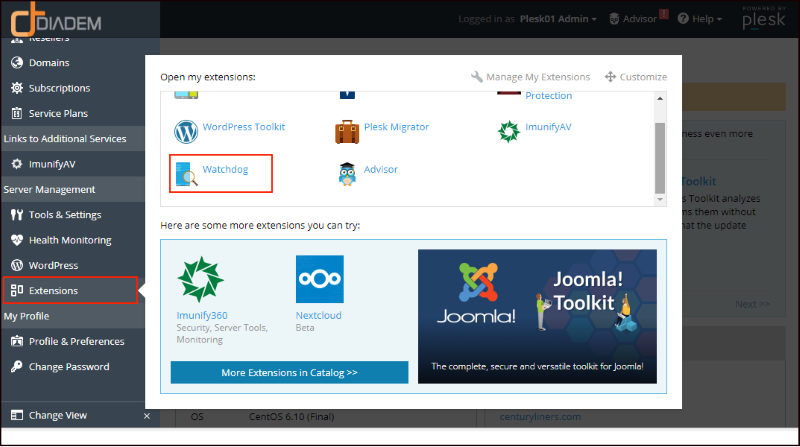
Configuring Watchdog Settings
In order to configure Watchdog settings follow below mentioned steps-
Go to Extensions > Select Watchdog.
Specify the following settings:
- Automatically refresh pages.
- Monitor all services started by administrator.
- Polling interval.
- Store resource usage statistics.
- Repeat security scan.
- Send reports
- Send e-mail to. (Note all notification will be send to the email id which you will add in this Text Box)
- Sender’s e-mail address.
- SMTP server for sending alerts.
Click Apply to submit the settings.

Monitoring System Services
All services controlled by Plesk will be listed on the Services tab.
Specify the services that should be monitored and specify monitoring preferences:
Click a service name.
Select the Monitor the service checkbox to set the Watchdog to monitor the service Click on OK to save.

Monitoring Disk Usage
For configure and start monitoring disk space usage:
Go to Extensions > Watchdog > the Disks tab.
All connected (mounted) devices will be listed , click on search button.

Then it will provide you total disk installed on your system then click on disk name.
Provide the Disk space usage threshold, and files number threshold and then click OK to set the disk monitoring.

Scanning Server for Malware
To set up and start regular security scanning:
Go to Extensions > Watchdog > the Preferences tab, then specify how often Watchdog should scan the server for malicious code in the Repeat security scan menu and Click Apply.
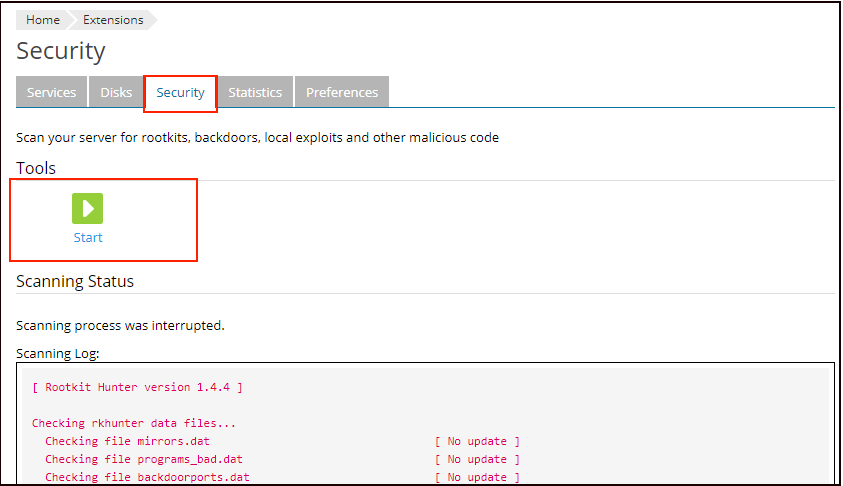
View Scanning Report
To view the report for the last system scan:

Go to Extensions > Watchdog > the Security tab.
The detailed report will be presented on the screen. If you wish to run a new scan, click the Refresh icon in the Tools group.
Viewing CPU and RAM Usage Statistics

Related Articles
Server Resource Utilisation Monitoring with Plesk
Plesk Server Monitoring helps to keep your Plesk running smoothly by tracking the server resource usage and notifying you when one or more resource usage reaches a predefined threshold. Note : For more information look for the reference url given ...Plesk services logs and configuration files
Plesk services logs and configuration files Plesk Logs Error log: /var/log/sw-cp-server/error_log Access log: /var/log/plesk/httpsd_access_log Panel log: /var/log/plesk/panel.log Configuration PHP config on RHEL-based: ...How to install Server Health Monitor, watchdog in Plesk
Installing Health Monitor and Watchdog Health monitor in monitoring and keeping track of the server resources and notifying the admin if the resources crosses the threshold limit. Install Health Monitor Step 1: Installing Health Monitor To Install ...Important Plesk CLI Commands
Important Plesk Linux CLI Commands If Plesk throws an error, these logs will help. /usr/local/psa/var/log /opt/psa/admin/logs /var/log/sw-cp-server/error_log /usr/local/psa/admin/logs/panel.log /usr/local/psa/admin/logs/httpsd_access_log ...Imunify360 setup and configuration
Imunify360 setup and configuration Ref URL - https://www.imunify360.com/getting-started-settings/ General Settings Malware Settings Backup settings Feature Management Notifications Proactive Defense Upgrade Imunify360 Upgrade Imunify360 ModSecurity ...