Sitelock Malware Detector Setup Guide
Sitelock Malware Detector Setup Guide
Once your Sitelock Antimalware product has been enabled from our end, below are the steps involved to set up and manage your Sitelock account and settings:
- How to Login into Sitelock
- Overview of Site Security
- Managing Scan Settings
- Managing Download settings
- Managing Smart Settings
- Messages and Alerts
Login URL:https://diademtech.myorderbox.com/
Step 1: Log in to your domain panel using login credentials as provided by Diadem

Step 2: Search for the domain name for which the Sitelock product has been enabled
Step 3: Now Click on SiteLock and then Click on Admin Panel as shown in the below Screenshot
Step 1: A new window will open, from the DASHBOARD option you can check the security summary of your website. As per the below screenshot, we can see that most of the services are displaying Good and if any services show Failed or Medium then we can view the detail by simply clicking on the status.
.png)
Step 2: If you want to view the status of the services then click under any services and you will get the in-depth detail wherein you can get the information regarding service status and causes which may degrade your services.
.png)

Step 1: If you want to manage your Site lock settings then Click on the Settings
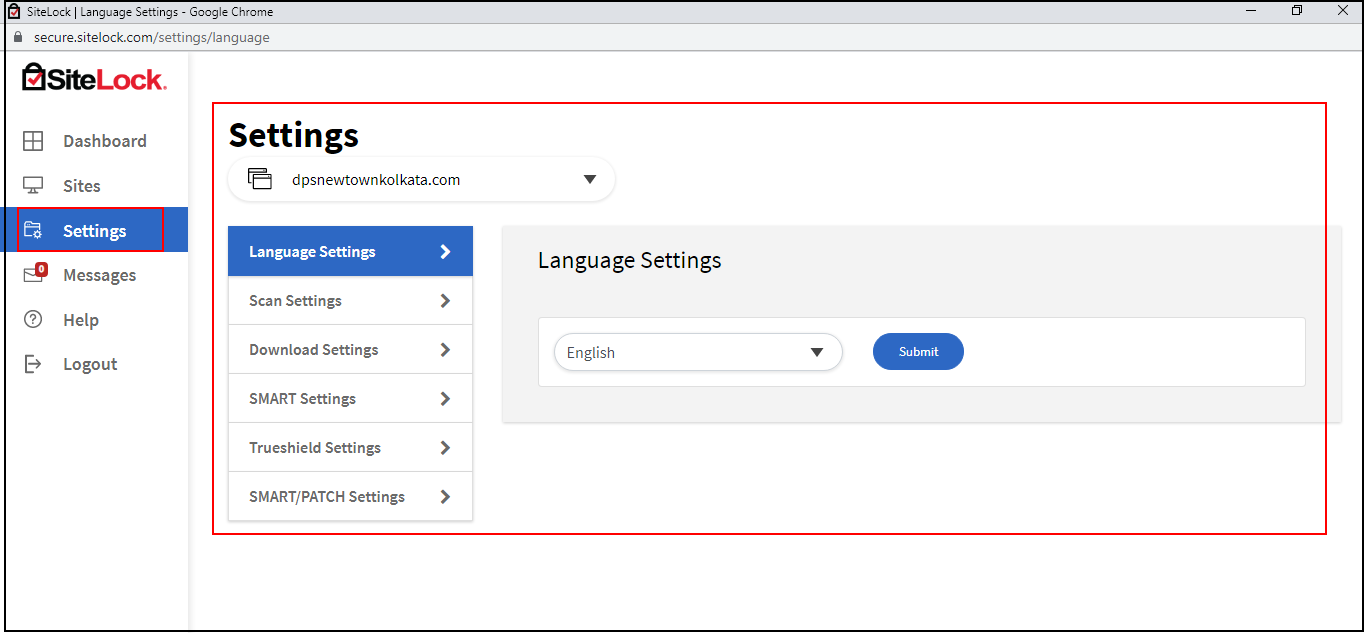
Step 2: Now if you want to manage Scan settings, click on Scan Settings and click under the drop-down beside Smart and Vulnerability scan and select scan as per your need and requirement and click on Submit.

Step 1: From the Method For File Transfer drop-down menu chooses the option FTP then please put your ftp user name and password on the marked field as below and click on Save.

Step 1: From SMART Settings you can automatically remove malware from your website by selecting Automatically remove the malware found from the drop-down and click on Save

Step 1. Click on Messages on the left Menu option and Click on Messages wherein alerts can be viewed and accordingly one can take the measures as per the alerts.
.png)
Related Articles
Imunify360 setup and configuration
Imunify360 setup and configuration Ref URL - https://www.imunify360.com/getting-started-settings/ General Settings Malware Settings Backup settings Feature Management Notifications Proactive Defense Upgrade Imunify360 Upgrade Imunify360 ModSecurity ...Imunify360 setup and configuration
Imunify360 setup and configuration Ref URL - https://www.imunify360.com/getting-started-settings/ General Settings Malware Settings Backup settings Feature Management Notifications Proactive Defense Upgrade Imunify360 Upgrade Imunify360 ModSecurity ...Configure Manul antimalware for web content scanning
Manul is an anti-malware utility that collects structured information about your site. You can either send the compiled information to a specialist or analyze it yourself to get a treatment script. Manul is easy to install. It doesn't need access to ...How to clean malware from reported website
When we see this type of alert on browser, it’s indicated that the site content malicious software (malware). Procedure to clean up the site: 1.At first you have to go online malware scanner site: ‘sitecheck.sucuri.net’ 2.Hit the scan website ...Cerberus 5 install guide
CERB5 Logins: helpdesk.diadem.co.in hriday@diadem.co.in bing@893PM avik@diadem.co.in 4I99DnbN bhavana@diadem.co.in J68phW6B tushar@diadem.co.in rhapsody49 ########## signature text: -- Regards, {{full_name}} {{title}} Diadem Technologies Pvt. Ltd. ...