Creating IMAP E-mail account in Thunderbird
1. To configure Mail Account on Thunderbird, open Thunderbird click on “Tools” over the tab and click “Account Setting” From the drop down menu. (On Linux Ubuntu click on Edit > Account Setting).

2. Click On “Account Actions” and click “Add Mail Account” from the drop down menu after clicking this “Mail Account Setup” pop up comes up.

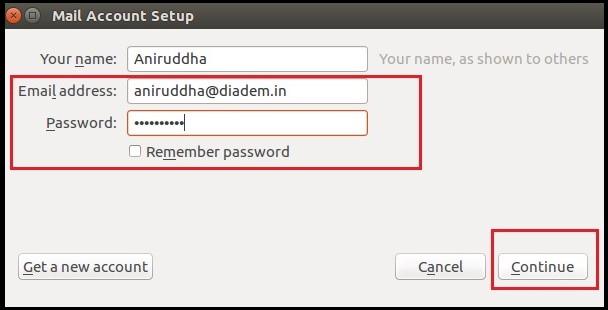
3. Give Email address and Password and click "Continue".
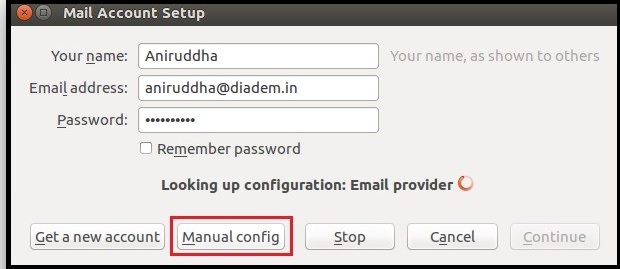
4. After clicking “Continue” Button Thunderbird finds the mail server information. Click on “Manual Config” .
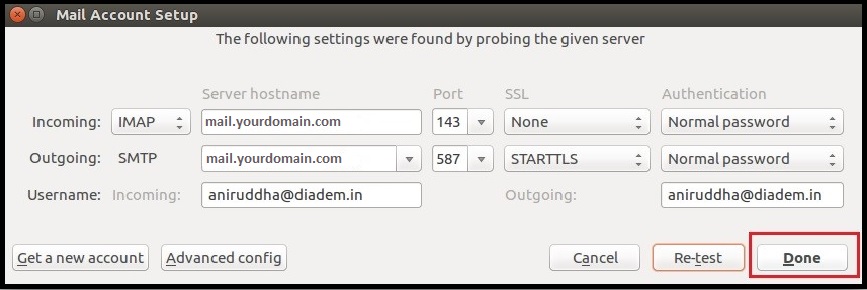
5. Give the Incoming mail server information and Protocol “IMAP” or “POP” , Server hostname & Port . Similary we have to set Outgoing mail Server hostname and port. If we choose Port in auto mode the thunderbird automatically find out actual port for incoming and outgoing mail server. Click On “Re-test” Button to check configuration is correct or not.

6. After checking complete “Done” Button will automatically activate and click on "Done".
7. After clicking “Done” button Thunderbird check login credentials are correct or not. When this process is complete then thunderbird will start to download and synchronize all the mail from the server.

8. After competition of process now Thunderbird is ready to use.

Related Articles
Creating POP3 E-mail account in Mozilla Thunderbird
To configure POP3 E-mail account in the Mozilla Thunderbird go to Tools --> Accounts Settings. Now click on Account Actions and select Add Mail Account. After this typed Your Name as your name, then add full E-mail address, typed Password after that ...Creating POP3 account in Apple Mail
Run Apple Mail. If you run it for the first time and do not have any mail accounts configured in it, skip the next step: Apple Mail will take you directly to creating one. Open the Adding Mail Account wizard: Click Mail > Preferences.... Select the ...Changing E-mail password through webmail (Horde)
Changing E-mail password through webmail (Horde) Step 1: Follow the steps to change password of your email address from Horde webmail 1. Visit the URL http://webmail.<domain_name> or https://webmail.<domain_name> and login into horde mail. 2. Hover ...Creating Email Auto Reply/ Vacation Mail
Steps to Creating Email Auto Reply/ Vacation Mail Objective: If you are going on vacation and will not be able to check your mail for a while, you may want to leave a vacation notice that will be automatically sent to your correspondents once they ...POP3 and IMAP email id configure on Blackberry Z10 phone.
Step01:- 1. Please go to the Start screen, to configure POP or IMAP email id on Blackberry Z10 phone. Please choose Settings from drop down menu. Step02:- 2. Now choose option Accounts. Step03:- 3. Select the option Add Account. Step04:- 4. Now ...