How to Change MS SQL Database Recovery Model
Following tutorial will guide you to reset the MS SQL server sa user password. We assume that you have working sa or windows user password.
1. Login to MSSQL server by using current sa password through MS SQL management studio.
2. In left pane of Object Explorer, Click on Security -> Logins-> sa
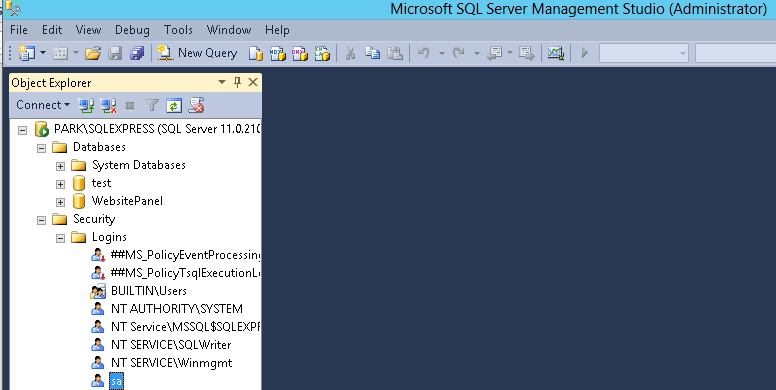
3. Right click on sa and click on Properties. It will open-up screen for password change.
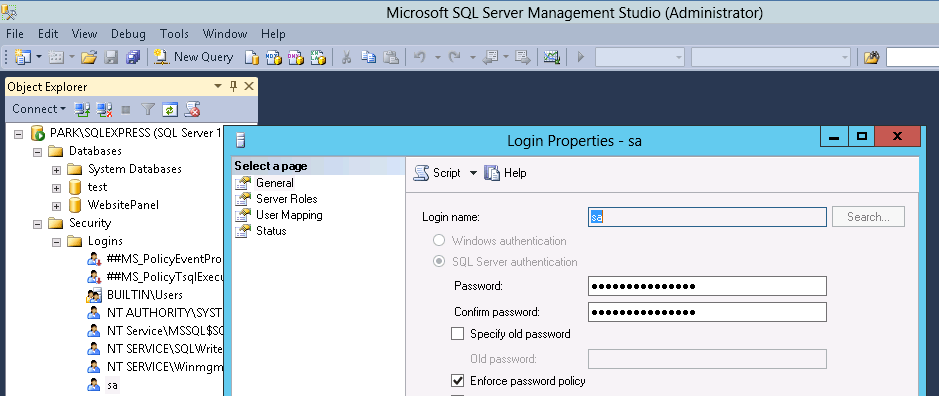
4. Change password and press OK button.
Related Articles
How to change MS SQL database user password from SolidCP
Steps to follow to change MSSQL database password in SolidCP Login to SolidCP. Once you are logged into SolidCP, click on All Customers link. In the next screen, you will see the list of all created users. If you have not created any user yet, you'll ...Take Full backup of MS-SQL database using management studio
To take the full backup of MS-SQL database, please follow the below steps 1. Open SQL Server Management Studio and connect to the appropriate instance of Microsoft SQL Server Database Engine in Object Explorer. 2. Expand Databases node and then right ...MS SQL database creation
Log in SQL Server Management Studio to create database. Create a folder in "C:\SQLdomain\" as your domain name. C:\SQLdomain\testdomain.com Click right mouse button on Databases to open database menus and click New Database link. Assign a Database ...Backup and restore MySQL database with Plesk
Backup and restore MySQL database with Plesk Description: In Plesk, database dumps are created in the SQL format and saved as ZIP archives. If you need to create a dump in another format or to set custom settings for a dump, use the native ...Accessing MS SQL database using myLittleAdmin
To access MS SQL database using myLittleAdmin please follow the below steps. STEP: 1 Login to the Plesk panel and click on Website and Domains on left Menu Bar then select Database Option 1 and 2 will open the Database panel wherein option 3 will ...