MySql Backup and Restore using SQLBackupAndFTP
Note : Free version can take the backup of only two database.
- Download the latest version of SQLBackupAndFTP from below mentioned url :-
- URL : https://sqlbackupandftp.com/download
- Once SQLBackupAndFTP gets downloaded make sure system has latest version of .NET Framework version
Start SQLBackupAndFTP, you can find the SQLBackupAndFTP shortcut in the Windows Start menu in the SQLBackupAndFTP folder.

Connect to an SQL Server, the Сonnection form will open automatically. "SQL Server Name": enter the name of the SQL server you are connecting to (like \sqlexpress) "Server Name": will be localhost, "Port number": will be 3306, provide user name and password.

Select databases to backup Click the gear button into the Select database section, to select databases to backup.

Select the DB for backup and click on Save & Close

Select destinations to store backups, Click the plus button to select destinations to store the backups. Select one of the backup destinations where you would like to store the compressed backup files.
.png)
Schedule the backup job Turn on Schedule backups. Choose a time to do a full backup, usually during the night.
.png)
Run the job to test it Click Run Now. Verify the appropriate people have received email messages. Verify the target folders from Local/Network Folder or FTP server (if specified) contain a zip file for each database. If possible, test restoring these databases.

Set up notification e-mails for backup jobs

.png)
Advanced Schedule (optional) You can set Differential and Transaction log backups in Advanced Schedule. Also on this form, you can schedule the job to run at any custom schedule (more often than once daily).
Restore All your backups can be found at the History & restore section. You can open a backup log by clicking Open Log, download selected backup file Download Backup... or restore the database from the selected backup Restore from Backup.
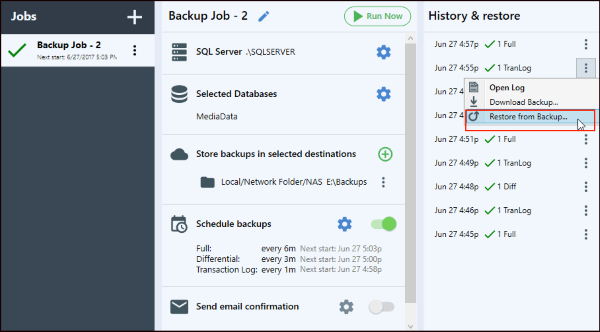
To restore a database choose a backup from the list and select Restore from Backup... option, then click Restore.

Related Articles
Backup and restore MySQL database with Plesk
Backup and restore MySQL database with Plesk Description: In Plesk, database dumps are created in the SQL format and saved as ZIP archives. If you need to create a dump in another format or to set custom settings for a dump, use the native ...How to download website backup using plesk control panel
Steps to download website backup using Plesk Step 1: At first login to the Plesk control panel and click on Website & Domains then select the domain for which you want to take the backup and then go to file manager. Step 2: Select the folder (or ...Plesk Subscription-level daily schedule backup
Plesk Subscription-level daily schedule backup How to schedule the backup How to restore the backup How to schedule the backup Step 1: Go to Subscriptions > example.com > Backup & Restore > Schedule. Step 2: Check the Activate backup task checkbox ...cPanel Backup Job monitoring
Cpanel Backup Job monitoring Reference KB on Cpanel Backup log location: https://support.cpanel.net/hc/en-us/articles/4402165344535-Where-are-the-cPanel-Backup-logs Reference KB on Cpanel backup on locally mounted remote filesystem: ...How To Restore a Microsoft SQL Database Backup Using SQL Server Management Studio
Steps to Restore a Microsoft SQL Database Backup Using SQL Server Management Studio. Open SQL Server Management Studio and Connect to the SQL Server you want to restore the database to. Once you Connected to the SQL server, right click on the ...